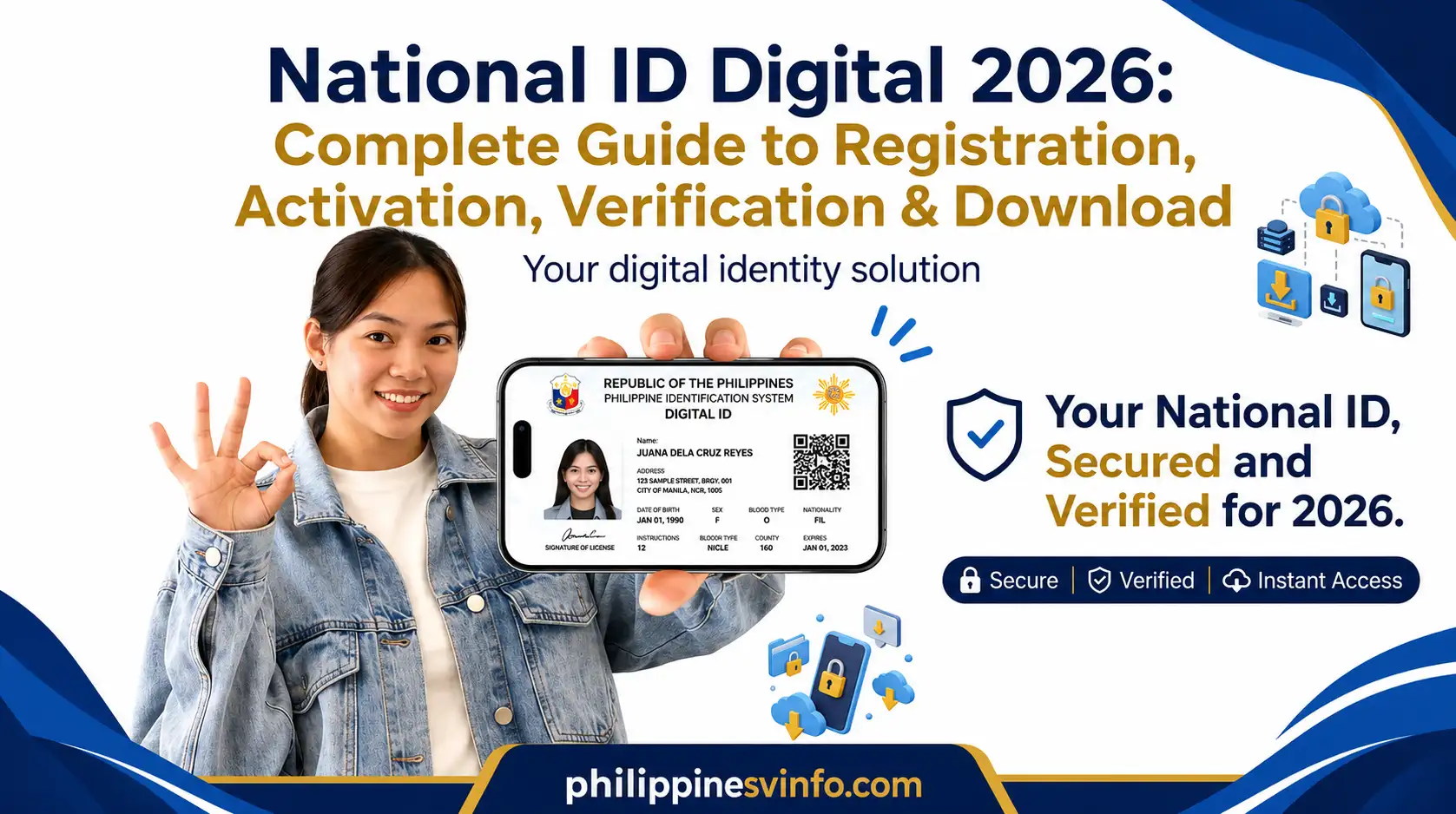
National ID Digital 2026: Complete Guide to Registration, Activation, Verification & Download
The National ID Digital is the official electronic version of the Philippine National ID issued under the Philippine Identification System (PhilSys). It allows registered Filipino citizens and resident aliens to verify their identity securely using a smartphone, tablet, or any internet-connected device. Once authenticated through the official PhilSys platform, it carries the same legal validity as the physical National ID card and the printable ePhilID.
With the Digital National ID, you can access government services, open bank accounts, receive financial assistance, and complete identity verification without carrying your physical card. Its built-in security features make it a convenient and reliable option for both online and in-person transactions.
What Is the National ID Digital
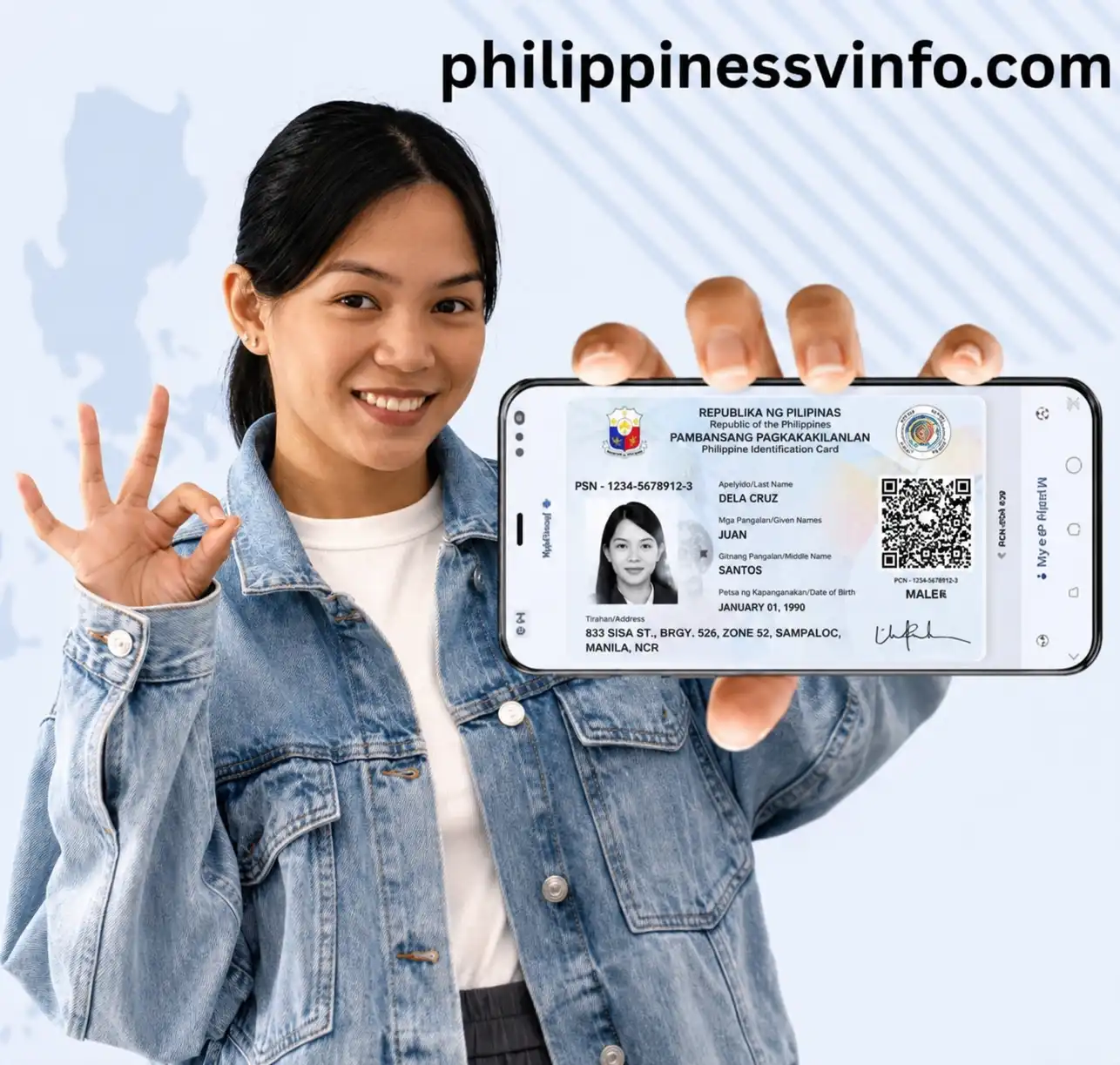
The National ID Digital is the official digital credential linked to your PhilSys registration. After your identity has been verified, you can access it through authorised government platforms whenever proof of identity is required.
Unlike a photo or scanned copy of your ID, the Digital National ID is protected by advanced security measures, including encrypted personal information and a dynamic QR code that organisations can authenticate in real time. These features help prevent fraud while ensuring your identity can be verified quickly and securely.
National ID Digital Registration Process
To obtain a National ID Digital, you must first complete your PhilSys registration. The process includes providing your personal details, submitting valid identification documents, and completing biometric verification.
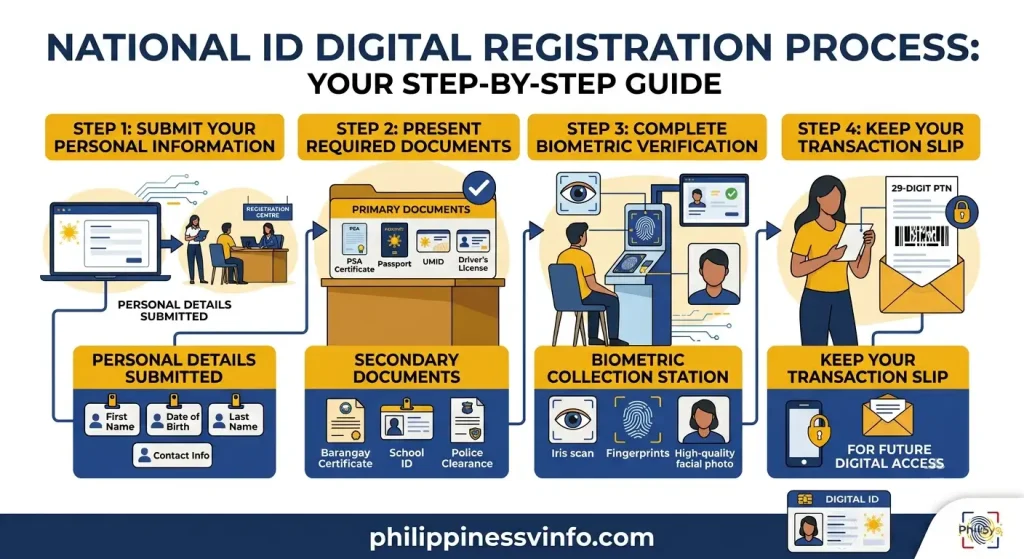
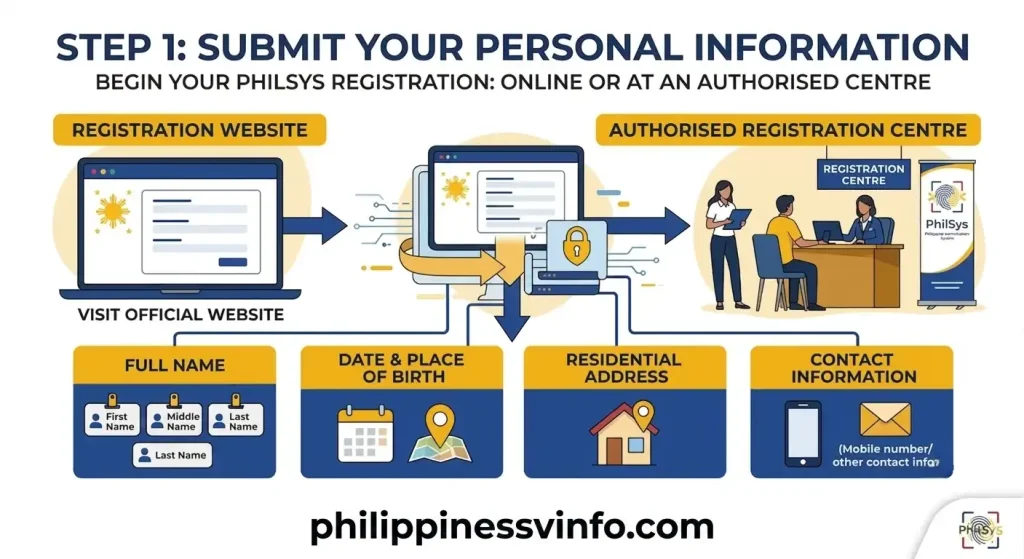
Step 1: Submit Your Personal Information
To begin your PhilSys registration, visit the official registration website or an authorised registration centre. You will be required to provide accurate personal information to create your National ID record.
Step 2: Present the Required Documents
Bring one accepted primary identification document, such as a PSA Birth Certificate, Passport, UMID, Driver’s License, or Voter’s ID. If a primary ID is unavailable, you may submit two valid secondary supporting documents, such as a Barangay Certificate, School ID, or Police Clearance, subject to PhilSys requirements.
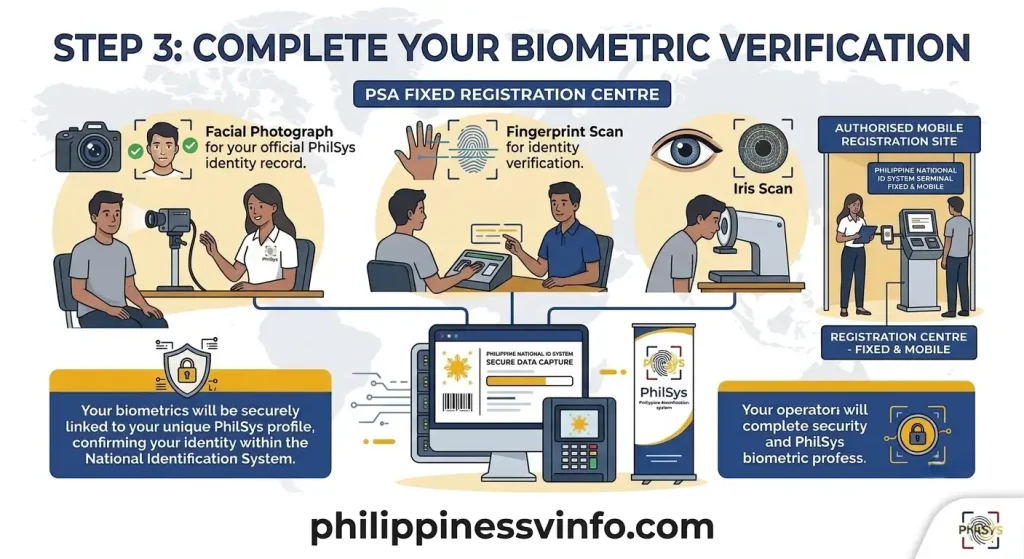
Step 3: Complete Your Biometric Verification
Visit a PSA Fixed Registration Centre or an authorised mobile registration site to complete your biometric verification. This step confirms your identity by collecting the biometric information required for your PhilSys National ID.
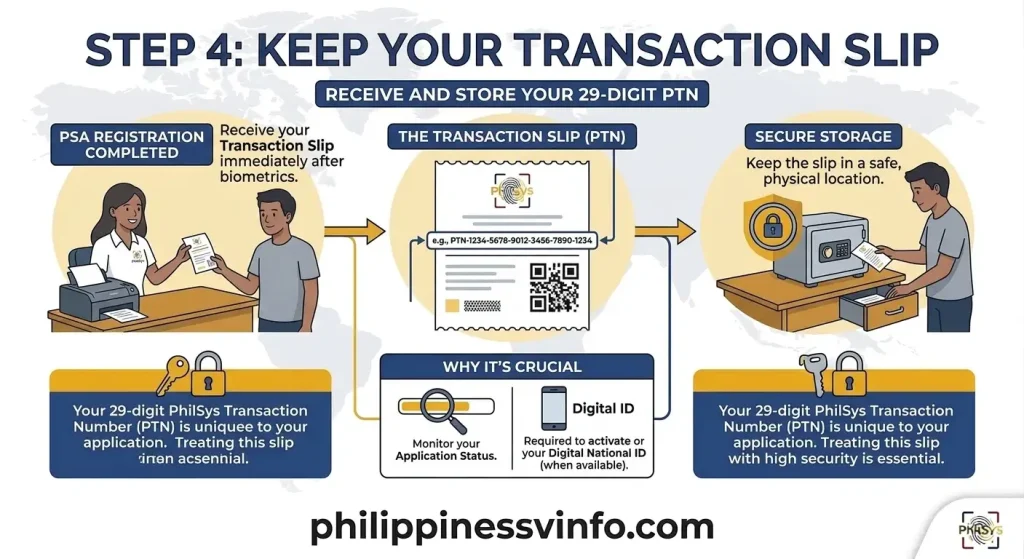
Step 4: Keep Your Transaction Slip
After completing the registration process, you will receive a transaction slip containing your 29-digit PhilSys Transaction Number (PTN). Store this slip in a safe place, as the transaction number is required to monitor your application status and may also be needed when activating or accessing your Digital National ID once it becomes available.
National ID Digital Activation Process
After your biometric registration has been reviewed and approved by the Philippine Statistics Authority (PSA), you can activate your Digital National ID through the official PhilSys online platform. The activation process confirms your identity and securely connects your digital credential to your PhilSys record.
Step 1: Open the Official Digital National ID Digital
Start by visiting the official Digital ID National portal using a smartphone, tablet, or computer. You may also use the authorised National ID mobile application if it is available. Always access official government platforms to protect your personal information.
Step 2: Provide Your Registered Personal Details
Enter the same demographic information you submitted during your PhilSys registration. This includes your:
Make sure every detail matches your registration records to prevent verification errors.
Step 3: Complete the Facial Authentication
The system will request a liveness check to verify your identity. Allow your device to access the camera and follow the instructions displayed on the screen. Your live facial image will be compared with the biometric data stored in the PhilSys database to confirm that you are the registered holder.
Step 4: Verify Your Mobile Number
Enter the mobile number linked to your PhilSys registration. A One-Time Password (OTP) will be sent to your phone. Once you enter the correct OTP, your Digital National ID will be activated successfully and ready for use.
National ID Digital Verification Guide
The Digital ID National can be verified instantly through the official PhilSys Check system. Government agencies, banks, remittance centres, and other authorised organisations use this verification service to confirm that a Digital National ID is genuine before accepting it for official transactions.
Step 1: Open the PhilSys Check Portal
Visit the official PhilSys Check website using any web browser to begin the verification process.
Step 2: Scan or Upload the QR Code
Select the QR code scanning option and allow camera access, or upload an image containing the QR code displayed on the National ID portal.
Step 3: Check the Verification Result
Once the QR code has been processed, the system will display the verification status.
How to Access Your National ID Digital Online
If you have successfully completed your PhilSys registration, you can access your National ID portal online at no cost. The Digital ID National has the same legal validity as the physical PhilID and may be used as an official proof of identity for eligible government and private transactions.
Step 1: Visit the Official Digital ID National Portal
Open your preferred web browser on a smartphone, tablet, or computer and navigate to the official National ID portal website. On the homepage, select Proceed to begin the authentication process.
Step 2: Accept the Privacy Notice
Read the privacy notice and consent statement carefully. You must authorise the Philippine Statistics Authority (PSA) to use your personal information and facial image solely for identity verification before continuing.
Step 3: Enter Your Registration Details
Provide the same information used during your PhilSys registration:
Review all details carefully before proceeding, as even minor errors may prevent successful verification.
Step 4: Complete the Face Verification
Select Start Liveness and allow camera access on your device. Follow the instructions shown on the screen to complete facial authentication.
For the best results:
The system securely compares your live facial image with the biometric information stored in the PhilSys database.
Step 5: Access Your Digital National ID
After your identity has been verified successfully, your Digital National ID will appear on the screen. Review your personal information to confirm that all details are correct before using it for identity verification, government services, banking, or other authorised transactions.
Common Digital National ID Problems and How to Fix Them
While using the National ID Digital, you may occasionally encounter verification or access issues. Most of these problems are temporary and can be resolved by following the recommended troubleshooting steps below.
| Issue | Possible Cause | Recommended Solution |
|---|---|---|
| Verification Failed or Server Timeout | High website traffic or an unstable internet connection | Switch between Wi-Fi and mobile data, then try again during non-peak hours such as early morning or late evening. |
| Record Not Found | Your registration is still being processed, or the entered information does not match PhilSys records | Wait two to three weeks after completing your biometric registration, then enter your details exactly as shown on your transaction slip. |
| Face Verification Failed | Poor lighting, blurred camera, or facial accessories affecting the scan | Move to a well-lit area, clean your camera lens, and remove glasses, hats, masks, or other items covering your face before trying again. |
| OTP Not Received | Temporary network delay or an outdated registered mobile number | Refresh your mobile network by enabling and disabling Airplane Mode. If your registered number has changed, update it at a PhilSys Registration Centre. |
| Unable to Open the Downloaded PDF | Incorrect password entered for the encrypted file | Enter the password using the required format. For example, if your name is Juan Dela Cruz and your birth date is 15 October 1995, your password would be JD19951015. |
| Digital National ID Not Accepted | The organisation may not yet be familiar with this verification procedures | Ask the staff to verify your QR code using the official PhilSys verification system or present your National ID Digital through the official eGovPH application or printed copy. |
National ID Digital vs Physical National ID
Both versions of the PhilSys National ID Digital are officially recognised and carry the same legal validity. The main difference lies in how they are accessed and presented during identity verification.
| Feature | National ID Digital | Physical National ID |
|---|---|---|
| Format | Electronic ID accessed through the official PhilSys portal or authorised mobile application | PVC plastic identification card issued by the Philippine Statistics Authority |
| Availability | Can be accessed online after successful identity verification | Delivered to the registered residential address through PHLPost |
| Primary Use | Ideal for online services and convenient digital identity verification | Suitable for face-to-face transactions where a physical card is preferred |
| Storage | Available on compatible smartphones, tablets, or computers | Kept as a physical card in your wallet or purse |
| Cost | Free | Free |
| Security Features | Facial authentication, encrypted QR code, and real-time online verification | Physical security elements with a printed QR code for verification |
Security Features of the National ID portal
Biometric Facial Verification
The National ID Digital uses biometric facial verification to confirm the identity of the registered holder. During access or activation, the system performs a live facial scan and compares it with the biometric data stored in the PhilSys database, helping prevent unauthorized access through photos or recorded videos.
Encrypted PDF Protection
The downloaded National ID portal PDF is protected with AES encryption and secured by a unique password. This ensures that only the rightful owner can open and view the document, reducing the risk of unauthorized access to personal information.
Encrypted QR Code Authentication
Every Digital National ID contains an encrypted QR code with a digital signature issued by the Philippine Statistics Authority (PSA). This security feature helps verify the authenticity of the ID and protects it from tampering or duplication.
Real-Time Database Verification
The Digital National ID supports real-time database verification through the official PhilSys system. When the QR code is scanned, the information is instantly checked against the PSA database to detect fake, altered, suspended, or invalid credentials.
What to Do If Your National ID Digital Verification Fails
If your National ID Digital cannot be verified, there’s no need to panic. Most verification errors are caused by incorrect information, poor facial recognition, or temporary system issues. Follow the steps below to resolve the problem before contacting PhilSys support. Read more
Step 1: Check Your Camera and Lighting
Ensure you are in a bright, well-lit area before starting the facial verification. Clean your device’s camera lens, remove sunglasses, hats, masks, or any facial coverings, and look directly into the camera throughout the verification process.
Step 2: Verify Your Personal Information
Review the personal details you entered, including your first name, middle name, last name, and date of birth. These details must exactly match the information you provided during your PhilSys registration to avoid verification errors.
Step 3: Try Again Later
If the Digital National ID portal is responding slowly or displaying server errors, wait for some time before trying again. Accessing the system during off-peak hours, such as early morning or late evening, often provides a smoother experience.
Step 4: Check Your Internet Connection
A weak or unstable internet connection may interrupt the verification process. Switch between Wi-Fi and mobile data, then restart the verification to establish a more stable connection.
Step 5: Contact PhilSys Support
If the verification continues to fail after completing the previous steps, contact the Philippine Statistics Authority (PSA) for assistance. When submitting your support request, include the following information:
Providing complete and accurate information will help the support team investigate your concern more efficiently.
Where You Can Use Your Digital National ID
The National ID Digital can be used as a valid proof of identity for many government and private transactions, subject to the institution’s verification process.
You can commonly use it for:
Government and Private Services That Accept the Digital National ID
This is recognised as a valid proof of identity by many government agencies, financial institutions, and private organisations across the Philippines. Since it has the same legal validity as the physical PhilID, it can be used for identity verification in a wide range of official transactions.
Government Agencies That Accept the National ID Digital
You can present your Digital National ID when applying for government services, verifying your identity, or completing official transactions at the following agencies.
| Government Agency | Accepted Use Cases |
|---|---|
| Department of Foreign Affairs (DFA) | Passport applications and passport renewals |
| Social Security System (SSS) | Member registration, salary loan applications, and benefit claims |
| Government Service Insurance System (GSIS) | Retirement processing, loan applications, and member services |
| Pag-IBIG Fund | Housing loans, MP2 Savings, and calamity loan applications |
| PhilHealth | Membership registration, record updates, and healthcare benefit claims |
| National Bureau of Investigation (NBI) | NBI Clearance applications and renewals |
| Philippine National Police (PNP) | Police Clearance applications and identity verification |
| Land Transportation Office (LTO) | Driver’s license applications and renewals |
| Bureau of Internal Revenue (BIR) | Tax Identification Number (TIN) registration and other tax-related services |
Private Services That Accept the National ID portal
Many private companies also recognise the National ID Digital as a valid government-issued identification document. National ID Digital can be used for several everyday transactions, including:
Frequently Asked Questions About the Digital National ID
Conclusion
The National ID Digital makes identity verification faster, safer, and more convenient for Filipinos and resident aliens. With the same legal validity as the physical PhilID, it can be used for banking, government services, passport applications, SIM registration, employment, and many other transactions that require a trusted proof of identity.
By understanding how to register, activate, verify, access, and protect your National ID Digital, you can use it confidently whenever identity verification is required. To keep your personal information secure, always access your Digital National ID through official PhilSys or eGovPH platforms and ensure your registration details remain accurate and up to date.