PNP FEO Online System 2026: Complete Registration, License and Application Guide
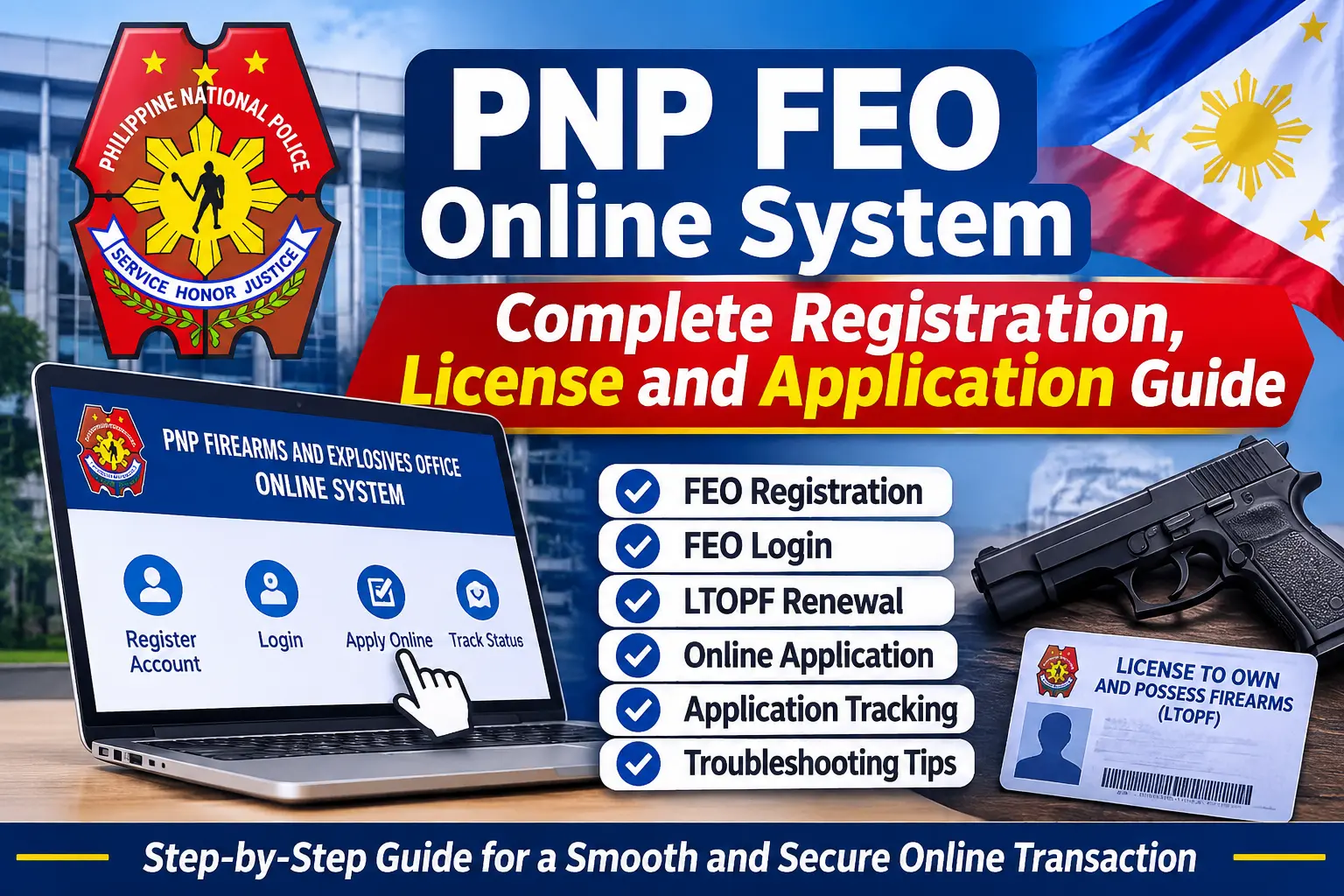
The PNP FEO Online System is the official digital platform associated with the Philippine National Police Firearms and Explosives Office (PNP-FEO). It provides eligible applicants with online access to applicable account services, licensing-related applications, document submission, application monitoring, and other administrative transactions. Through the FEO Online System, users can manage relevant application activities while following the requirements and procedures established by the Philippine National Police.
This comprehensive PNP FEO Online System Guide explains how to access the official FEO portal, register a new account, migrate an existing account, complete account verification, understand LTOPF classifications, prepare the necessary documents, and submit an online application. It also covers application tracking, payment notifications, account recovery, common technical problems, and frequently asked questions to help users understand the administrative process.
Important Notice: The PNP FEO Online System handles regulated firearms and explosives-related administrative services. All applicants must follow applicable Philippine laws, official eligibility requirements, and instructions issued by the Philippine National Police. This guide provides general information about portal registration and account management, not instructions for acquiring, modifying, or using weapons.
What Is the PNP FEO Online System?
The PNP FEO Online System is an online platform connected with the Philippine National Police Firearms and Explosives Office. It is designed to provide eligible applicants with digital access to relevant firearms and explosives licensing services and administrative transactions.
Instead of depending entirely on traditional in-person procedures, users may access available online services to manage their accounts, review application requirements, submit supporting documents, receive payment-related notifications, and monitor application progress.
The FEO Online System also provides an organized digital environment where applicants can review relevant information and follow the procedures associated with their applications.
Before accessing any service, verify that you are visiting the correct official PNP FEO website. Avoid unofficial websites, social media accounts, or third-party individuals claiming to provide guaranteed approval or faster application processing.
PNP FEO Online System Account Registration
Creating an account is the first important step for applicants who want to access the PNP FEO Online System and use its available online services. The registration process allows the Philippine National Police Firearms and Explosives Office (PNP FEO) to associate an applicant’s personal information with the appropriate account and administrative records.
Before starting, prepare your basic personal details and make sure you have access to your registered email address and active mobile number. Follow the instructions displayed on the official portal, as registration and verification requirements may change.
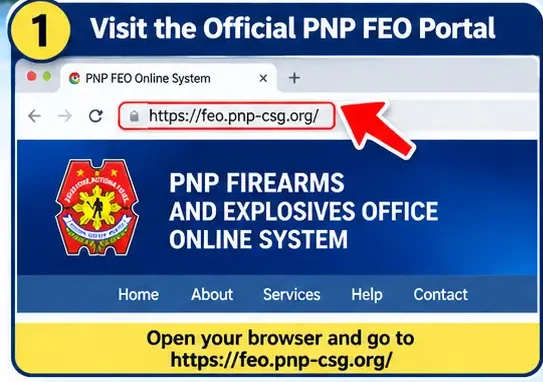
Step 1: Visit the Official PNP FEO Online Portal
Open an updated web browser on your computer, laptop, or mobile device and visit the official PNP Firearms and Explosives Office Online System.
Official Website: https://feo.pnp-csg.org/
After opening the website, allow the homepage to load completely. Review the available options and locate the account registration or login section.
Always verify the website address before providing personal information. Accessing the correct official domain helps protect your account details and reduces the risk of submitting information through an unofficial website.
Step 2: Select the Account Registration Option
If you are a first-time user, look for the registration option provided on the PNP FEO portal. Select it and carefully review the instructions displayed on the screen.
The registration process may vary depending on the applicant’s account category and the portal’s current requirements. Make sure you select the appropriate option before proceeding.
If you already have an existing FEO account, use the available login option instead of creating another account unnecessarily. Existing users should follow any account migration or recovery instructions displayed by the official system.
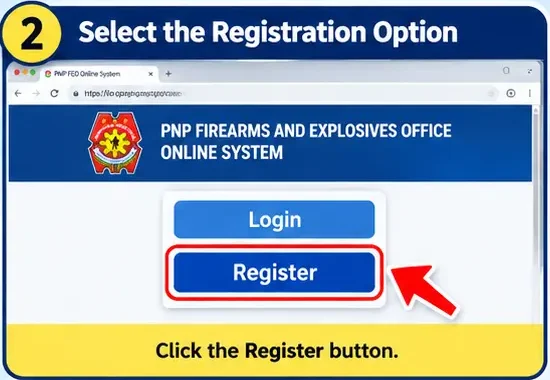
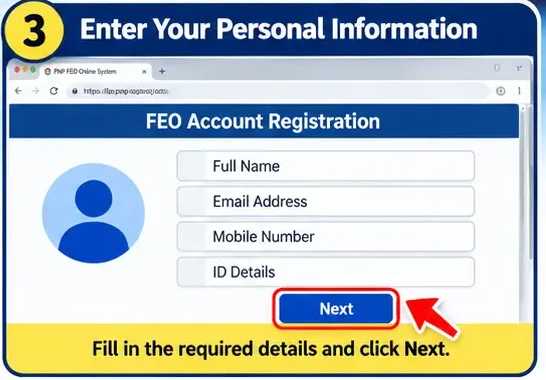
Step 3: Enter Your Personal and Contact Information
Complete the registration fields requested by the PNP FEO Online System. Provide accurate information that matches your official identification and existing administrative records.
Depending on the registration procedure, applicants may be asked to provide:
- Full legal name
- Registered email address
- Active mobile number
- Contact information
- Personal identification details
- Other information requested by the official portal
Review every entry before submitting the registration form. Incorrect names, outdated contact details, or mismatched personal information may cause verification difficulties or delays during application processing.
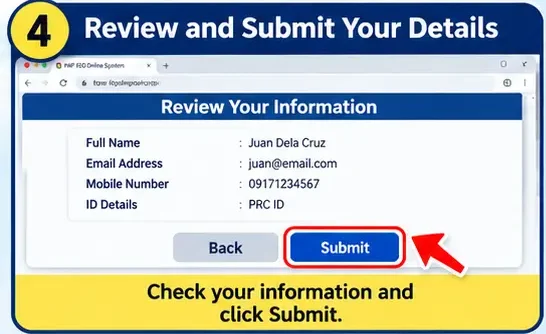
Step 4: Review and Submit Your Registration Details
Before submitting your information, carefully check the details entered in each available field. Make sure your name, email address, mobile number, and other required information are correct.
If the portal displays a confirmation page or registration summary, review it before continuing. Correct any mistakes using the available editing options.
Once everything is accurate, follow the on-screen instructions to submit your registration details. Wait for the system to process your information and display the next step.
Avoid submitting multiple registration forms unless the official portal specifically instructs you to do so.
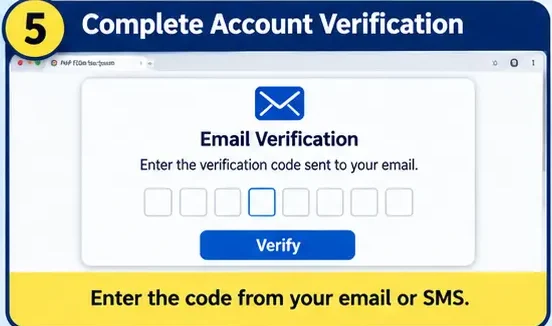
Step 5: Complete FEO Account Verification
After submitting your registration information, complete the verification procedure displayed by the PNP FEO Online System.
Depending on the portal’s current configuration, the verification process may involve:
- Email Verification: Opening a confirmation message sent to your registered email address.
- SMS OTP Verification: Entering a One-Time Password sent to your registered mobile number.
- Additional Authentication: Following any other identity or account verification instructions provided by the system.
Enter the verification code exactly as instructed and complete the process within the specified period, if one is provided.
Keep access to your registered email address and mobile number because they may also be needed for future login verification, account notifications, and password recovery.
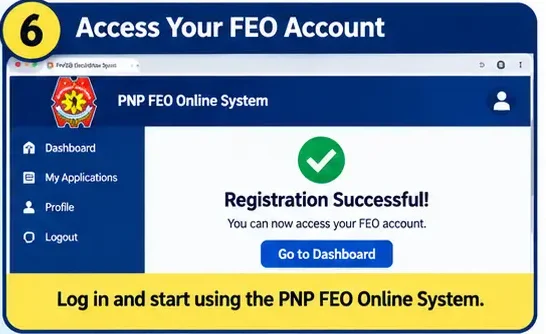
Step 6: Access Your FEO Account and Review the Dashboard
After completing the required registration and verification steps, return to the account-access section of the official portal and follow the displayed login instructions.
If your account has been successfully activated, sign in using the credentials and authentication method required by the system.
Once you reach your account dashboard, review the available sections and check whether your personal and account information is displayed correctly. You can then follow the portal’s current instructions to access the relevant FEO online services.
Keep your login credentials private and never share your password or verification codes with unauthorized individuals. If you experience a login or account-access problem, use the official recovery or support instructions provided by the PNP FEO portal.
Existing Users and Legacy FEO Account Migration
Applicants who previously registered on an older FEO platform may need to migrate or update their existing accounts when accessing the newer PNP FEO Online System.
Account migration helps eligible existing users follow the transition instructions provided by the official platform without unnecessarily creating duplicate records.
If the FEO portal displays an account migration option, carefully follow the instructions shown on the website.
Depending on the system’s requirements, users may be asked to provide information associated with their previous account.
Keep these points in mind:
- Use your existing FEO account information when requested.
- Provide accurate details associated with your previous registration.
- Follow the official legacy account migration instructions.
- Avoid creating multiple accounts to resolve an existing login problem.
- Contact the appropriate FEO support channel if your previous account cannot be identified.
Creating duplicate accounts may complicate account management and application verification. Therefore, existing users should first determine whether their accounts require migration, updating, or recovery.
Two-Factor Authentication (2FA) in the PNP FEO Online System
Two-Factor Authentication (2FA) is an additional security feature that may be required when accessing the PNP FEO Online System. It provides another layer of protection by requiring an additional verification step beyond the registered username and password.
Depending on the security configuration of the portal, applicants may be asked to use an authenticator application or another approved verification method.
If the system requests additional authentication, follow the official instructions displayed on the screen.
Users should keep their registered authentication method accessible and protect all verification information.
If an authenticator code is rejected or access to the authentication device is lost, use the official FEO account recovery procedure. Never attempt to bypass account security or share verification codes with another person.
Requirements for PNP FEO Online Applications
The requirements for a PNP FEO Online Application depend on the specific service, applicant classification, and applicable government regulations.
Different applicant categories may have different documentation and verification requirements. For this reason, applicants should review the latest instructions available through the official PNP FEO Online System before beginning an application.
The general applicant categories identified in FEO-related guidance include:
| Applicant Category | General Information or Documents That May Be Requested |
|---|---|
| Private Employees | Identification, employment-related information, and supporting documents |
| Business Owners | Personal identification and applicable business documentation |
| Professionals | Professional information, identification, and supporting records |
| Law Enforcement Personnel | Official service-related information and applicable documentation |
| Government Officials | Government employment and service-related records |
The exact requirements may vary according to the applicant’s classification and the service being requested.
The PNP FEO Online System may also require digital copies of supporting documents. Applicants should ensure that their documents are complete, readable, accurate, and submitted in the file format accepted by the portal.
Prepare Your Documents Before Starting
Preparing the necessary documents before accessing the FEO Online System can help reduce avoidable application delays.
Before proceeding, review the following general document-preparation points:
- Make sure your name is consistent across your official records.
- Check the validity of your identification documents.
- Prepare clear and readable digital copies when required.
- Avoid uploading cropped or incomplete documents.
- Include all required pages of supporting records.
- Follow the file format and size restrictions displayed by the portal.
- Confirm that your registered email address and mobile number are accessible.
- Keep any applicable examination or certification records available.
If the PNP FEO Online System rejects a document, review the upload requirements and check whether the file meets the portal’s technical specifications.
Understanding LTOPF Classifications
The License to Own and Possess Firearms (LTOPF) is associated with the licensing services administered through the Philippine National Police Firearms and Explosives Office.
The PNP FEO Online System may display different LTOPF classifications depending on the applicable regulations, applicant category, and official eligibility requirements.
Applicants should carefully review the classification and requirements presented by the official FEO portal rather than assuming that a particular category applies to their situation.
The applicable classification, eligibility, and supporting documentation must be determined through the official PNP FEO process.
If the portal displays a specific classification or additional requirement during an application, follow the instructions provided by the system and consult official FEO guidance whenever clarification is needed.
Submitting an Application Through the PNP FEO Online System
After completing account registration and any required verification, applicants can access the services made available through their FEO account.
The general administrative workflow may involve signing in, selecting the applicable service, reviewing the requirements, entering requested information, submitting supporting documents, and monitoring the application.
A typical online application process includes:
- Access the official PNP FEO Online System.
- Sign in using your registered account credentials.
- Open the relevant application or service section.
- Review the eligibility information and requirements.
- Enter the requested applicant information.
- Submit the required supporting documents.
- Review the information and uploaded files.
- Submit the application through the official portal.
- Monitor the application status through your account.
- Follow official payment instructions if a payment notice is issued.
The available services and exact steps may change as the FEO portal is updated. Always follow the current instructions displayed on the official website.
Why Accurate Application Information Matters
Accuracy is essential when completing a PNP FEO Online Application. Information submitted through the portal may be reviewed against identification documents, supporting records, and relevant official databases.
Incorrect spelling, mismatched personal details, outdated contact information, or incomplete documentation can result in additional verification requirements or application delays.
Before submitting your application, carefully review every field and ensure that all uploaded documents correspond to the information provided.
Taking time to verify your details can help prevent avoidable errors during the official application review process.
How to Track Your FEO Online Application
After submitting an application through the PNP FEO Online System, applicants should regularly monitor their application status to stay informed about its progress. The online tracking facility helps users review available application updates, identify pending requirements, and determine whether additional information or corrections are needed.
To check your FEO Online Application status, visit the official portal:
Official PNP FEO Online System: https://feo.pnp-csg.org/
Sign in using your registered account credentials and navigate to the relevant application, transaction, or status section. The available tracking options and menu names may vary depending on the current version of the FEO portal.
Once you access your application details, carefully review the latest status and any notifications associated with your submission.
Common PNP FEO Application Statuses
The PNP FEO Online System may display different status descriptions depending on the type of application and its current processing stage.
Common application status indicators may include:
| Application Status | General Meaning |
|---|---|
| Submitted | The application has been successfully submitted through the portal. |
| Under Review | The application is undergoing official evaluation. |
| Pending Requirements | Additional information or documents may be required. |
| Awaiting Payment | A payment-related requirement may need attention. |
| Processing | The application is moving through the relevant administrative procedures. |
| Approved | The application has received the applicable official approval. |
| Returned for Correction | The applicant may need to correct or update submitted information. |
| Rejected | The application has not been accepted under the applicable review process. |
The exact status terminology may differ from one FEO service to another. Always read the notification or explanation provided alongside the status instead of relying only on the displayed label.
If your application is returned for correction, carefully review the official message and follow the instructions provided through your account.
Payment Notifications in the PNP FEO Online System
Some transactions available through the PNP FEO Online System may involve applicable government processing fees. If a payment notification appears in your FEO account, review the official payment instructions before completing the transaction.
Check the following details:
- Required payment amount
- Official payment method
- Transaction or reference number
- Payment deadline, if applicable
- Instructions for confirming the payment
- Any additional information displayed by the portal
Always use payment channels authorized by the official FEO process. Avoid sending money to private individuals or unofficial intermediaries who promise guaranteed approval, special treatment, or faster processing.
After completing an authorized payment, keep the official receipt and transaction confirmation. These records may be necessary when checking your application status or reporting a payment-related issue.
What to Do If Your FEO Payment Is Not Showing
Sometimes a completed payment may not immediately appear in the PNP FEO Online System. This can happen because of processing delays, transaction synchronization issues, or temporary technical problems.
If your payment status has not been updated, avoid making another payment until the original transaction has been checked.
Follow these general troubleshooting steps:
- Check the payment confirmation issued by the authorized payment provider.
- Verify the transaction reference or payment number.
- Sign out of your FEO account and sign in again.
- Open the relevant application or transaction section.
- Review any payment-related notifications.
- Allow the appropriate processing time indicated by the payment provider.
- Contact the official FEO support channel if the payment remains unconfirmed.
Keep your payment receipt, reference number, and relevant transaction screenshots for future verification.
FEO Online Document Upload Problems
Document submission is an important part of using the PNP FEO Online System. However, applicants may sometimes experience problems when uploading supporting documents through the online portal.
A document may be rejected because of an unsupported file format, excessive file size, incomplete scanning, or technical issues with the website.
Before attempting another upload, review the requirements displayed on the relevant document-submission page.
Check the File Format
The FEO Online System may accept only specific document formats for digital uploads. If your document is rejected, check the permitted file extensions mentioned on the portal.
Make sure that the uploaded file is saved in an accepted format and is not damaged or corrupted.
Do not repeatedly upload the same file without checking whether it meets the system’s requirements.
Check the File Size
Large scanned documents and high-resolution photographs may exceed the maximum upload limit of the PNP FEO Online System.
If the portal specifies a maximum file size, prepare your document within that limit while maintaining its readability.
Avoid unnecessary image resolution or excessive file sizes when they are not required by the official instructions.
Make Sure Your Document Is Clear and Complete
Before uploading any supporting document, verify that it meets the following general quality standards:
- Clear: All text and important details should be readable.
- Complete: Include every required page.
- Correct: Upload the document under its appropriate category.
- Properly Oriented: The document should not appear sideways or upside down.
- Readable: Avoid excessive shadows, blur, or poor lighting.
- Compatible: Follow the file type and size requirements displayed by the portal.
Only submit genuine and accurate documents. Never modify official records or alter information to make an application appear complete.
FEO SMS OTP Not Arriving
An SMS One-Time Password (OTP) may be required when signing in, verifying an account, or completing an authentication step in the PNP FEO Online System.
If you do not receive the FEO SMS OTP, first check whether the mobile number registered with your account is correct and active.
A delayed verification message may also result from temporary network problems or SMS delivery issues.
Try the following general troubleshooting steps:
- Check your registered mobile number.
- Make sure your phone has a stable cellular signal.
- Confirm that your device can receive regular SMS messages.
- Wait briefly before requesting another OTP.
- Avoid submitting repeated OTP requests within a short period.
- Try again later if the verification service appears temporarily unavailable.
If the system generates a new verification code, use the latest valid OTP rather than an older code that may have expired.
If the FEO OTP problem continues, follow the official account verification or support procedure. Do not attempt to bypass the authentication process.
Google Authenticator Problems in the FEO Online System
Applicants who use Google Authenticator or another supported authentication application may occasionally experience verification errors when accessing their FEO accounts.
An authenticator code may be rejected if the device time is not synchronized, the authentication setup was incomplete, or the code has expired.
If your Google Authenticator code is not working, check the following:
- Make sure your phone’s date and time are set correctly.
- Enable automatic date and time synchronization where available.
- Confirm that you are using the correct authenticator entry.
- Enter the currently generated verification code.
- Check whether the authentication setup was completed successfully.
If you have lost your phone or can no longer access the authenticator application, use the official FEO account recovery process.
Never share your authenticator codes, passwords, recovery codes, or other account credentials with anyone claiming to provide unofficial technical assistance.
Neuro-Psychiatric and Drug Test Records in the PNP FEO Online System
Some FEO-related application procedures may involve Neuro-Psychiatric examination or Drug Test records, depending on the applicable requirements and applicant classification.
Applicants may occasionally experience problems when an examination or test record does not immediately appear in their PNP FEO Online System account.
Before reporting the issue, review the information associated with your application and check whether the relevant record has been submitted through the appropriate official process.
Consider the following points:
- Verify that the personal information entered in your application is accurate.
- Check that the examination or test was completed through an appropriate provider.
- Confirm whether the provider has submitted the required information.
- Make sure your personal details match the information associated with the examination or test record.
- Allow sufficient time for the relevant records to be processed and reflected in the system.
If your Neuro-Psychiatric or Drug Test record remains unavailable, contact the appropriate official FEO support channel for clarification.
Do not attempt to create, modify, or submit false examination or test records to complete an application.
How to Avoid Common PNP FEO Application Delays
Application delays can sometimes occur because of incomplete information, document-upload errors, verification problems, or missing supporting records.
Although the official processing time depends on the relevant service and review requirements, applicants can reduce avoidable mistakes by following a few basic practices.
1. Provide Consistent Personal Information
Enter your name, identification details, contact information, and other required information accurately.
Your application details should match your official identification and supporting documents. Inconsistent information may result in additional verification or correction requests.
2. Review Every Uploaded Document
Before submitting supporting documents, open each file and check its contents.
Make sure all required pages are included, the text is readable, and the correct document has been uploaded under the appropriate category.
3. Monitor Your Registered Email and Mobile Number
The PNP FEO Online System may use your registered contact information for verification messages, account notifications, and application-related updates.
Keep your email address and mobile number accessible throughout the administrative process.
4. Check Your FEO Application Status Regularly
Submitting an online application does not necessarily mean that the entire process has been completed.
Sign in to your account periodically and review any new notifications, additional requirements, or status changes.
5. Keep Important Application Records
Maintain secure copies of your application reference numbers, official receipts, submission confirmations, and relevant communications.
These records can help you verify transaction details and communicate with the appropriate support office if an issue arises.
PNP FEO Account Recovery
If you cannot access your account, use the official recovery options provided through the PNP FEO Online System.
Forgotten passwords, inaccessible email addresses, mobile-number changes, and authentication problems may require different recovery procedures.
Visit the official FEO portal:
FEO Account Login and Recovery: https://feo.pnp-csg.org/
Depending on the current portal configuration, you may need to provide information associated with your registered account to verify your identity.
If you no longer have access to your registered email address or mobile number, follow the official FEO support instructions for account recovery or contact-detail verification.
Avoid creating another account immediately when an existing account becomes inaccessible. First determine whether the problem can be resolved through the official recovery or account migration process.
Protecting Your PNP FEO Online System Account
Account security is particularly important when using the PNP FEO Online System because it may contain sensitive personal information, application details, and licensing-related records.
Applicants should follow basic online security practices to protect their accounts against unauthorized access.
Never share the following information with unknown individuals:
- FEO account password
- SMS One-Time Password (OTP)
- Google Authenticator codes
- Account recovery codes
- Security answers
- Screenshots containing sensitive personal information
Always access the FEO portal directly through its official website instead of signing in through suspicious links received through social media, email, or messaging applications.
Be cautious of individuals claiming to be FEO agents who request your password, verification codes, or private account information.
Use a strong and unique password, and sign out completely after accessing your account on a shared or public computer.
What to Do If the PNP FEO Website Is Temporarily Unavailable
Like other government online platforms, the PNP FEO Online System may occasionally experience scheduled maintenance, temporary server problems, or heavy website traffic.
If the official FEO website does not load or displays an error message, the issue may be temporary rather than related to your account.
Try these general troubleshooting methods:
- Reopen the official FEO portal after some time.
- Check whether your internet connection is working properly.
- Try accessing the website through another supported browser.
- Clear temporary browser data if the page continues to display loading errors.
- Keep your application reference number and other transaction information available.
- Review official FEO announcements for maintenance or service updates.
If the website remains unavailable, wait for the official service to become accessible again.
Do not assume that a temporary website outage means your submitted application has been cancelled or rejected.
Using the Official PNP FEO Website Safely
When accessing firearms and explosives-related administrative services, always use the official Philippine National Police Firearms and Explosives Office website.
Official PNP FEO Online Portal: https://feo.pnp-csg.org/
Search engine results may display third-party guides, advertisements, unofficial websites, or social media pages discussing the FEO Online System.
Although informational websites can help explain general procedures, applicants should use the official FEO portal for current registration instructions, account services, application requirements, and transaction-related information.
Before submitting personal details, verify the website domain and make sure that you are using the correct official platform.
Quick PNP FEO Online System Troubleshooting Table
The following table summarizes common PNP FEO Online System problems and the general checks applicants can perform before contacting official support.
| Common Problem | What You Should Check |
|---|---|
| Cannot Sign In | Verify your username and password or use the official account recovery option. |
| SMS OTP Not Received | Check your registered mobile number, network signal, and temporary SMS delivery delays. |
| Google Authenticator Code Rejected | Verify device time synchronization and authentication setup. |
| Document Upload Failed | Review the permitted file format, size limit, and document readability. |
| Neuro-Psychiatric Record Missing | Verify your personal details and the provider’s record-submission process. |
| Drug Test Record Not Linked | Confirm the required record information and contact the appropriate support channel. |
| Payment Not Reflected | Check your official receipt, transaction reference, and application status. |
| Application Returned for Correction | Read the official notification and follow the requested correction procedure. |
| Website Temporarily Unavailable | Try again later and review official maintenance announcements. |
| Duplicate Account Problem | Use existing-account recovery or official support instead of creating additional accounts. |
Important Reminder About PNP FEO Applications
The PNP FEO Online System is an administrative platform that helps eligible applicants access applicable online services and manage their transactions.
Creating an account or submitting an online application does not automatically guarantee approval. Every application remains subject to applicable Philippine laws, eligibility requirements, supporting-document verification, and the official evaluation process.
Applicants should always follow the latest requirements and instructions displayed by the Philippine National Police Firearms and Explosives Office.
If information published in an older online guide differs from the current portal instructions, prioritize the latest official FEO requirements.
Complete PNP FEO Online Application Workflow
The PNP FEO Online System brings several administrative services together through an online platform. Applicants can use their accounts to access available services, review application requirements, submit information, upload supporting documents, and monitor application progress.
Although the exact portal interface and requirements may change, the general administrative workflow follows a sequence involving account registration, login verification, application information, document submission, review, and status monitoring.
To begin, access the official website:
Official PNP FEO Online System: https://feo.pnp-csg.org/
Step 1: Visit the Official PNP FEO Portal
Open your preferred browser and visit the official PNP Firearms and Explosives Office Online System.
Before entering any personal information, confirm that the website address matches the official FEO domain.
Avoid using unofficial websites or links shared by unknown individuals. Always access the portal directly to protect your account information.
Step 2: Register or Sign In to Your FEO Account
New users should follow the registration instructions available on the PNP FEO Online System.
Existing users can access their accounts using their registered login credentials.
If you previously used an older FEO platform, check whether the current portal provides an account migration option.
Avoid creating duplicate accounts when an existing account can be recovered or migrated through the official process.
Step 3: Complete Account Verification
Complete any required account verification before accessing the available online services.
Depending on the current FEO security configuration, verification may involve email confirmation, SMS OTP, or Two-Factor Authentication (2FA).
Enter the required verification information and follow the instructions displayed on the portal.
Keep your authentication details private and never share your verification codes with another person.
Step 4: Select the Applicable FEO Online Service
After signing in, review the services available through your FEO account.
Select the relevant administrative service and carefully read its eligibility information and requirements.
Different applicant classifications and transactions may involve different documentation. Therefore, make sure you understand the instructions before proceeding.
Step 5: Enter Applicant Information
Complete the required information fields using accurate details that match your official records.
Depending on the application, the portal may request information such as:
- Full legal name
- Date of birth
- Registered contact details
- Residential address
- Identification information
- Employment or professional details, where applicable
- Other information required by the selected service
Review the information before continuing. Do not guess when you are unsure about a required field. Consult the official FEO instructions or support channel for clarification.
Step 6: Upload Required Supporting Documents
Submit the supporting documents requested for your particular application.
Before uploading, check that every document is complete, readable, and saved in a file format accepted by the PNP FEO Online System.
Pay attention to the following document-quality requirements:
- Clarity: All important information should be readable.
- Completeness: Include all required pages.
- Accuracy: Make sure each document belongs to the applicant.
- File Compatibility: Follow the portal’s permitted file formats and size restrictions.
If a document is rejected, review the upload instructions before attempting another submission.
Step 7: Review Your FEO Online Application
Carefully review your application before submitting it through the official portal.
Pay particular attention to:
- Correct spelling of your name
- Accurate personal identification details
- Correct dates and contact information
- Complete application information
- Appropriate supporting documents
- Readable uploaded files
- Any additional requirements displayed by the system
Correct any errors that can be edited before final submission.
A detailed review can help reduce unnecessary corrections and administrative delays.
Step 8: Submit the Application
After completing the required information and reviewing the supporting documents, submit your application through the PNP FEO Online System.
Wait for the portal to display its submission confirmation or other relevant notification.
If the system generates an application reference number, confirmation number, or transaction record, save it securely.
These details may be useful when tracking your application or communicating with the appropriate FEO support office.
Step 9: Monitor Your FEO Application Status
After submission, return to your FEO account periodically to check the latest application status.
Review any notifications, additional requirements, or correction requests displayed by the system.
If the application requires further information, follow the official instructions provided through your account.
Remember that an application submission confirmation does not necessarily mean that the application has been approved.
Step 10: Follow Official Payment Instructions
If your selected FEO service involves a government processing fee, review the payment notification generated through the official system.
Check the amount, transaction reference, payment method, and any applicable deadline before completing the transaction.
After payment, retain the official receipt or transaction confirmation for future reference.
Never pay unofficial intermediaries who claim they can guarantee approval or bypass the normal application process.
PNP FEO Online System Requirements Checklist
Before accessing the FEO portal, applicants can use the following checklist to organize their account information and supporting records.
The exact requirements depend on the selected service and applicant classification. Always compare this preparation checklist with the current official FEO instructions.
1. Account Information
- Accessible email address
- Active registered mobile number
- Accurate personal information
- Secure account password
- Access to the required authentication method
2. Identification Information
- Applicable valid identification documents
- Consistent personal details across official records
- Clear digital identification copies, where requested
3. Supporting Documents
- Required application documents
- Applicable certifications or supporting records
- Examination or test information, where required
- Correct digital file formats
- Documents within the portal’s specified size limits
4. Application Preparation
- Correct FEO service selected
- All mandatory information completed
- Required documents uploaded
- Applicant details reviewed
- Application submitted through the official portal
- Reference information saved securely
5. After Application Submission
- Application status checked regularly
- Official email and SMS notifications monitored
- Additional requirements reviewed
- Payment instructions followed, if applicable
- Official receipts and confirmations retained
This checklist is intended to help applicants prepare for the administrative process. It does not replace the official PNP FEO requirements or guarantee application approval.
Common PNP FEO Online System Problems and Their Solutions
Applicants may encounter different technical or account-related problems while accessing the PNP FEO Online System. Most issues should first be checked through the official account recovery, verification, or troubleshooting procedures.
My PNP FEO Account Is Not Working
If you cannot access your FEO account, first verify that you are entering the correct registered username and password.
Check for typing errors, incorrect capitalization, or outdated login information.
If you have forgotten your password, use the account recovery option provided by the official portal.
Avoid creating another account before checking whether your existing account can be recovered.
I Did Not Receive an FEO OTP
If your SMS One-Time Password has not arrived, confirm that your registered mobile number is correct and that your phone can receive SMS messages.
Wait briefly before requesting another code, and avoid submitting repeated verification requests.
If the problem continues, follow the official FEO account verification or support procedure.
My Google Authenticator Code Is Invalid
An incorrect device time or authentication setup problem may cause verification codes to be rejected.
Check your phone’s automatic date and time settings and make sure you are using the current code from the correct authenticator entry.
If you no longer have access to your authentication device, use the official recovery procedure.
My FEO Document Will Not Upload
If the FEO Online System rejects your supporting document, review the file requirements displayed on the upload page.
Check the document’s format, size, readability, and completeness.
Prepare a new digital copy if necessary, making sure the original information remains accurate and unaltered.
My Application Is Missing a Required Record
If a Neuro-Psychiatric or Drug Test record does not appear in your FEO account, verify that your personal information matches the information associated with the record.
Also check whether the relevant provider has completed the required submission process.
If the record remains unavailable, contact the appropriate official FEO support channel.
My FEO Payment Has Not Been Updated
If your payment is not reflected in the PNP FEO Online System, check the official payment receipt and transaction reference.
Review the application status again after the processing period indicated by the payment provider.
Do not submit another payment without confirming the status of the original transaction.
How to Keep Your PNP FEO Application Organized
Managing an online application becomes easier when all important records are stored securely and arranged properly.
Applicants should maintain a personal record of relevant application information throughout the administrative process.
Keep copies of the following:
- FEO application reference numbers
- Official submission confirmations
- Payment receipts
- Submitted supporting documents
- Official email communications
- Application status notifications
- Relevant account-related correspondence
Store these records in a secure location because they may contain sensitive personal or licensing-related information.
It is also important to maintain access to the email address and mobile number registered with your PNP FEO Online System account.
Keeping your records organized can make it easier to review previous transactions, identify missing information, and respond to official requests.
PNP FEO Online System Security Tips
The PNP FEO Online System may contain personal information, account details, and application records. Therefore, protecting your account should be a priority whenever you use the portal.
Follow these basic security recommendations:
Use a Strong Password: Create a unique password that is not used for other websites or online accounts.
Protect Your Login Credentials: Never share your username, password, OTP, authenticator codes, or recovery information with unknown individuals.
Avoid Suspicious Links: Access the official FEO portal directly rather than signing in through links received from unknown sources.
Use Trusted Devices: Whenever possible, access your account using your personal computer or mobile device.
Sign Out After Use: If you access the portal through a shared computer, sign out completely after finishing your session.
Watch Out for Fake Agents: Be cautious of individuals claiming they can guarantee approval, bypass eligibility requirements, or accelerate applications in exchange for unofficial payments.
Keep Your Information Private: Avoid sharing screenshots containing personal information, account references, or sensitive application details publicly.
These practices can help reduce the risk of unauthorized account access and protect your information while using the FEO Online System.
Why You Should Use the Official PNP FEO Website
When searching for information about the PNP FEO Online System, you may find different third-party articles, tutorials, and social media discussions.
Although these resources can provide general explanations, the official PNP Firearms and Explosives Office portal should remain your primary source for current administrative information.
The official website is the appropriate starting point for checking:
- Current FEO online services
- Account registration instructions
- FEO login and account procedures
- Legacy account migration information
- Application requirements
- Applicable payment instructions
- Application status and notifications
- Official announcements
- Account recovery and support procedures
Government application procedures can change over time. Information published in an older guide may no longer reflect the latest portal interface or administrative requirements.
For this reason, always verify important details through the official PNP FEO website before completing an online transaction.
Official Website: https://feo.pnp-csg.org/
Final PNP FEO Online Application Checklist
Before completing your transaction through the PNP FEO Online System, review the following final checklist to make sure you have addressed the main administrative steps applicable to your application.
- Have I accessed the official PNP FEO website?
- Have I registered or signed in using the correct account?
- Have I completed the required account verification?
- Have I selected the appropriate FEO service?
- Have I provided accurate personal information?
- Have I prepared the required supporting documents?
- Are my uploaded documents complete and readable?
- Have I reviewed all application information?
- Have I saved my application reference number?
- Have I checked the official payment instructions, if applicable?
- Am I monitoring my application status?
- Have I secured my account credentials and transaction records?
Completing these applicable checks can help you manage your FEO online application more carefully and avoid common administrative mistakes.
Frequently Asked Questions (FAQs)
Final Thoughts
The PNP FEO Online System provides an online platform for eligible applicants to manage applicable Firearms and Explosives Office administrative transactions. From account registration and verification to application submission and status monitoring, the portal helps users access relevant services through a centralized digital system.
For a smoother application experience, start by accessing the official PNP FEO website, reviewing the latest requirements, and preparing accurate personal information and supporting documents. Carefully complete the required account verification, review every application detail before submission, and keep your reference numbers and official payment receipts secure.
If you experience problems such as FEO login errors, SMS OTP delays, Google Authenticator issues, document-upload failures, missing Neuro-Psychiatric or Drug Test records, or payment-status delays, use the official account recovery and support procedures instead of relying on unofficial agents.
Most importantly, remember that registering through the PNP FEO Online System does not automatically guarantee application approval. All applications remain subject to applicable Philippine laws, eligibility conditions, document verification, and official evaluation.
For the latest registration procedures, LTOPF requirements, licensing-related services, account migration instructions, and application updates, always refer to the official PNP Firearms and Explosives Office Online System: