POA PNP Login 2026 Philippines: How to Login, Reset Password & Access Training
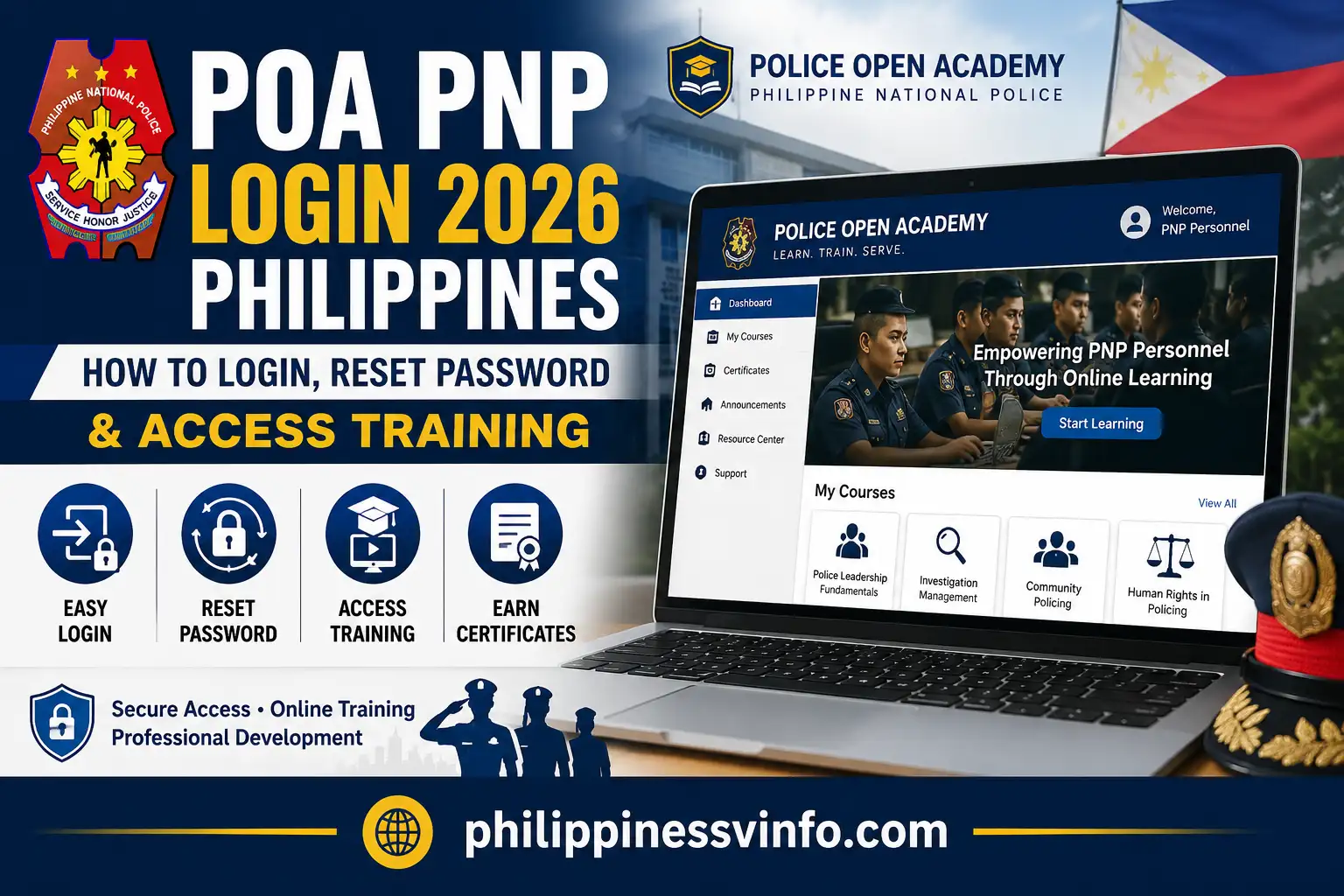
Getting into the POA PNP Login portal starts with using the official Police Open Academy website and having the right account details ready. The Police Open Academy (POA) is part of the Philippine National Police online system and supports learning, training, personnel information, instructor records, schedules, and reporting functions.
The official POA website is policeopenacademy.pnp.gov.ph. Always verify the website address before entering your username, email or password, particularly if you reached the portal through a search engine or a shared link. The official landing page identifies the service as the Police Open Academy and provides information connected with the Directorate for Human Resource and Doctrine Development (DHRDD).
This guide covers the POA PNP Login process, preparation before accessing an account, registration-related information, course functions, password recovery and common access concerns.
What Is POA PNP?
The Police Open Academy (POA) is an online platform associated with the Philippine National Police (PNP). It brings together several training and personnel-related functions in one system, helping authorised users manage or view information relevant to professional development and PNP training activities.
Among its listed functions are the creation of a Training Lineal List (TLL) for qualified PNP personnel, personnel profiles containing training information, instructor profiles, identification of overlapping training schedules, and dashboards or reports. The features available to an individual user may vary according to their account permissions.
For anyone searching for POA PNP Login, this distinction is important: POA is not simply a webpage for entering a password. It is an online training and information platform with different functions available to authorised users. Visit Homepage
POA PNP Login at a Glance
| Information | Details |
|---|---|
| Platform | Police Open Academy (POA) |
| Organisation | Philippine National Police (PNP) |
| Primary purpose | Training and personnel-related online services |
| Official website | policeopenacademy.pnp.gov.ph |
| Login requirement | Registered account credentials |
| Intended users | PNP personnel and authorised users |
| Main functions | Training, personnel profiles, schedules and reports |
The dashboard you see after a successful POA PNP Login may not be identical to another user’s dashboard. Available tools and information depend on the account’s role and assigned access permissions.
What to Prepare Before Accessing POA PNP
A little preparation can make the POA PNP Login process smoother. Users should have a working email account, dependable internet access and a current web browser available before opening the portal.
If your registration or particular training activity requires identification or enrolment documents, keep the relevant files ready in digital form. Having them available beforehand can prevent interruptions while completing an online process.
Basic Requirements
Before accessing the POA PNP Login app, make sure you have:
Using an updated browser is recommended because older browser versions may cause problems with forms, account pages or other interactive parts of an online portal. If the login page does not load properly, checking your browser and internet connection should be one of the first troubleshooting steps.
How to Complete POA PNP Login
Once your POA account is active, you can access the Police Open Academy through its official online portal. Follow these six steps carefully to reach your account and check the functions available to your profile.
Step 1: Open the official POA website
Start by opening the official Police Open Academy website in supported browser.

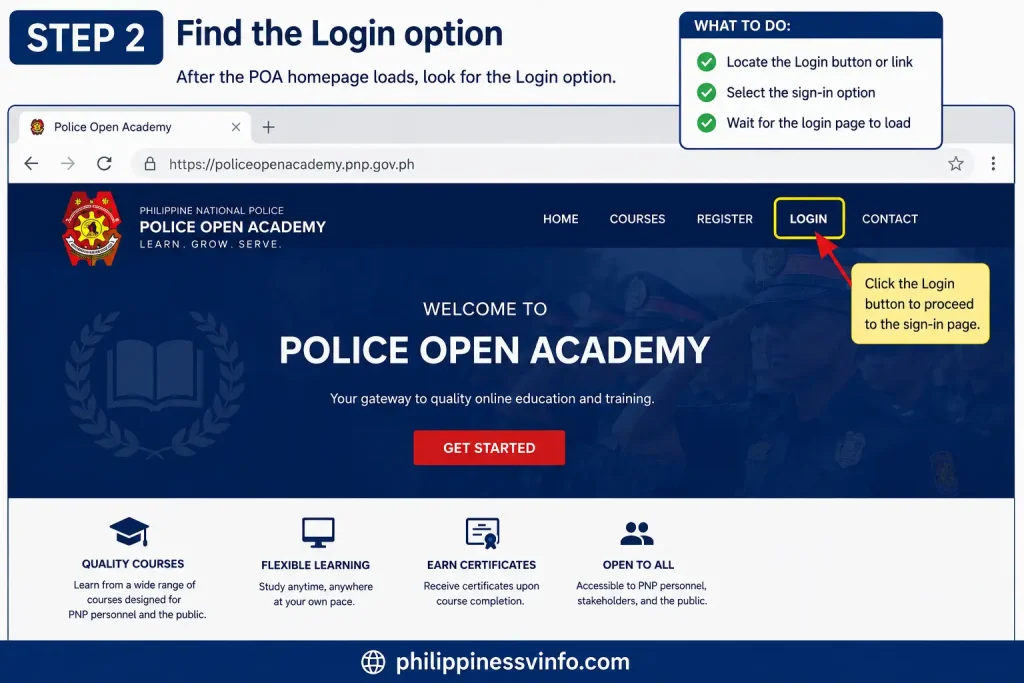
Step 2: Find the Login option
After the POA homepage loads, look for the Login option provided by the system.
Step 3: Enter your account details
On the sign-in page, provide the credentials linked to your POA account.

Step 4: Submit the login form
Once your credentials are entered, submit the form using the available Log In button.

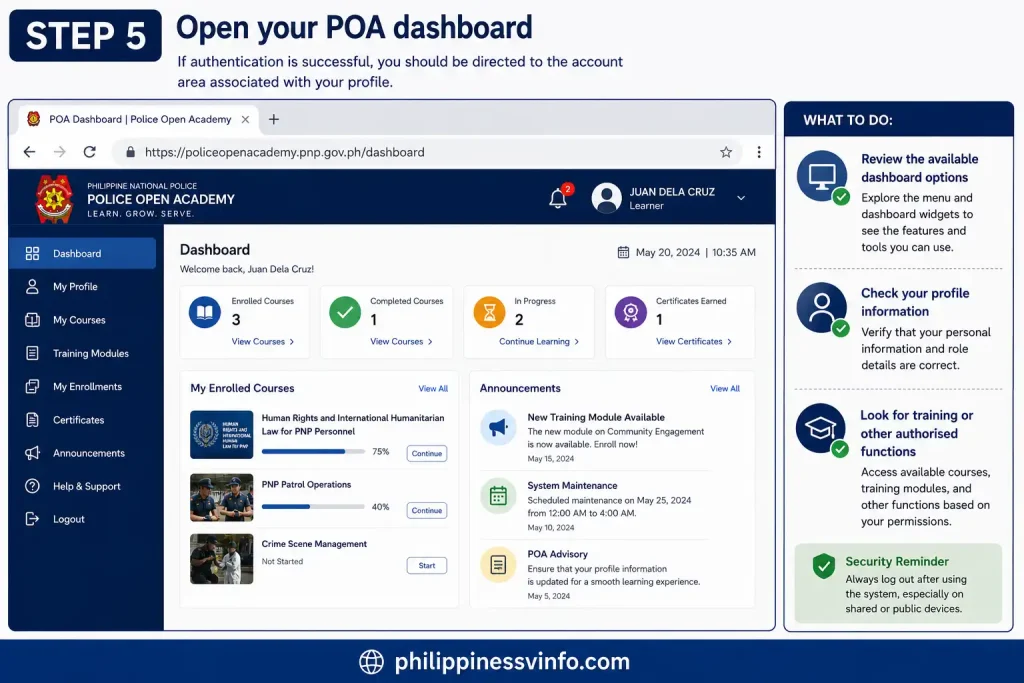
Step 5: Open your dashboard
If authentication is successful, you should be directed to the account area associated with your profile. The information and tools displayed can vary according to your assigned permissions.
Step 6: Access the POA services
After reaching the dashboard, use the functions available to your account. The official POA information lists features connected with personnel profiles, training schedules, instructor profiles and reports.

How to Reset Your POA PNP Login Password
Forgetting a password can prevent you from completing your POA PNP Login app, but the account recovery process is designed to help registered users regain access. If the portal displays a Forgot Password? or Lost Password? option, use that feature instead of repeatedly entering passwords.
Password Recovery Process
- Open the official POA website.
Go to the Police Open Academy portal and proceed to the login area. - Select the password recovery option.
Look for Forgot Password?, Lost Password?, or a similar recovery link shown on the login page. - Enter your registered email.
Provide the email address connected with your POA account and submit the recovery request. - Check your inbox.
Look for the password-reset message. If you cannot find it, check your Spam or Junk folder. - Create a new password.
Follow the reset link provided in the email and enter your new password where requested. Confirm the password and save the change. - Return to POA PNP Login.
Go back to the official portal and sign in using your updated credentials.
Tip: Avoid making several unsuccessful login attempts when you know the password may be incorrect. Using the available recovery option is a better approach.
Common POA PNP Login Issues and Solutions
| Common Issue | Possible Solution |
|---|---|
| Incorrect username or password | Recheck your username or registered email and make sure your password is entered correctly. Remember that passwords are case-sensitive. If you still cannot sign in, use the password-recovery option. |
| Password reset email not received | Check your Spam or Junk folder and confirm that you entered the email address linked to your POA account. If the message still does not arrive, contact the appropriate portal administrator. |
| POA website does not load | Check your internet connection and refresh the page. If the problem continues, try accessing the portal through another modern browser such as Chrome, Firefox, Edge or Safari. |
| Login page keeps refreshing | Close unnecessary browser tabs and reopen the official POA website. Clearing temporary browser data or using a private/incognito window may help identify a browser-related problem. |
| Unable to recover the password | Make sure you are using the correct registered email and the official POA portal. If recovery still fails, seek assistance from the appropriate portal administrator. |
| Account access problem | Avoid repeatedly entering incorrect credentials or creating unnecessary new accounts. Check your login details and use the available recovery or official support process. |
| Concern about an unofficial login page | Do not enter your credentials on an unfamiliar website. Start from the official policeopenacademy.pnp.gov.ph domain and verify the address before signing in. |
| Cannot access account after changing password | Return to the official POA PNP Login app and try signing in with the newly created password. Ensure there are no typing or capitalisation errors. |
Important Security Tips for POA PNP Login
Your login credentials should be treated as private account information. Good security habits are especially important when accessing an official online platform.
Keep these practices in mind:
Avoid Unofficial Login Pages
Search engines may show different pages when you search for POA PNP Login. The safest approach is to verify that the address belongs to the official POA domain before providing any personal information.
POA PNP Training and Personnel Information
The Police Open Academy platform provides several functions connected with PNP training administration. The official website describes tools for personnel profiles, training information, instructor profiles, training schedules, Training Lineal Lists, dashboards and reports.
The Personnel Profile function is intended to maintain personnel information together with training records. The Training Schedule function can identify overlapping training dates, while the Dashboard and Reports area supports training-related statistics and reporting.
The platform also has an Instructor Profile function through which an instructor can submit and monitor an application for inclusion in the instructor pool.
What If You Cannot Access Your POA Account?
If you have tried the normal POA PNP Login and password-recovery process without success, avoid repeatedly creating new accounts or submitting random information.
Instead, review the problem carefully. Confirm that you are using the correct official website, that your internet connection is stable and that your registered email or username is correct.
The official POA website lists the Directorate for Human Resource and Doctrine Development (DHRDD) and provides contact information for enquiries. If your issue requires administrative assistance, use the contact details displayed on the official website rather than relying on contact information from an unrelated third-party page.
POA PNP Login: Quick Checklist
Before attempting to sign in, make sure you have:
This checklist can help you identify simple access problems before seeking additional support.
Frequently Asked Questions About POA PNP Login
Conclusion
The POA PNP Login provides authorized Philippine National Police personnel with access to the Police Open Academy’s online training and personnel-related services. From accessing training information and personnel profiles to reviewing schedules, instructor information, dashboards, and reports, the platform brings several useful functions together in one online system.
Before signing in, make sure you have the correct account credentials, a stable internet connection, and an updated web browser. Always verify that you are using the official POA website before entering your username, email, or password. If you forget your password or experience an access problem, use the available recovery options and seek assistance from the appropriate PNP support personnel when necessary.
By following the correct POA PNP Login process and maintaining good account-security practices, authorized users can access the Police Open Academy more safely and efficiently. Always rely on the official POA platform for the latest login instructions, training information, and support details.