LTMS Portal Registration Philippines 2026: Complete LTO Online Account Guide
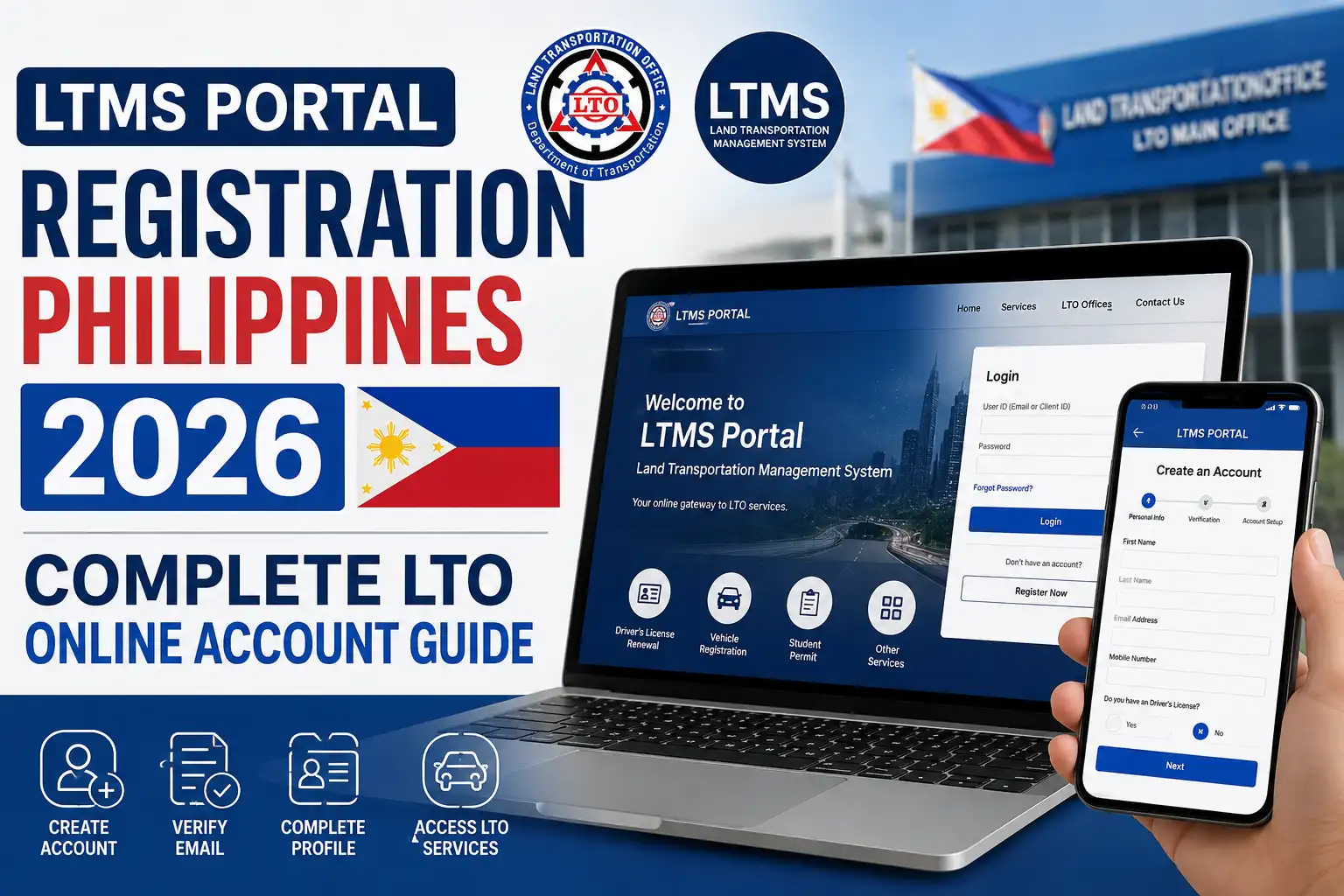
The LTMS Portal is the official online platform of the Land Transportation Office (LTO) Philippines. It allows users to access different land transportation services digitally, including licensing-related transactions, driver information, traffic-related services, and other available LTO functions. If you are searching for the ltms online portal registration process, the most important thing is to begin from the official LTO website and make sure you are using the correct portal.
The official LTMS website is portal.lto.gov.ph. The homepage provides options such as Register Now and Log In, allowing new users to create an account and existing users to access their profiles.
Important: Always verify that you are using the official LTMS domain before entering your personal information, password, identification details, or verification codes.
What Is the LTMS online Portal?
The Land Transportation Management System (LTMS) is the digital platform developed by the Philippine Land Transportation Office to support online land transportation services. It forms part of the LTO’s digitalization efforts and covers areas such as driver’s licensing, revenue collection, online applications and appointments, and traffic law enforcement-related processes. Visit Homepage
For regular users, the LTMS Portal account is the main starting point. After creating an account and completing the required verification, users can log in and access the LTO services that are available for their account and transaction.
The portal also provides useful learning and reference materials. Depending on the services available, users may find driver’s manuals, licensing information, road-safety resources, motor-vehicle registration information, and other LTO-related educational materials.
LTMS Portal at a Glance
| Information | Details |
|---|---|
| Portal Name | Land Transportation Management System |
| Agency | Land Transportation Office (LTO) Philippines |
| Official Website | portal.lto.gov.ph |
| Main Options | Register Now and Log In |
| Common Users | Drivers, motorists, applicants, and vehicle-related clients |
| Access | Smartphone, tablet, laptop, or desktop with internet |
| Account Login | Registered email or LTO Client Number, depending on the account |
The LTMS login system allows registered users to enter their email address or LTO Client Number, password, and security code. A Forgot Password option is also available for users who need to recover access to their account.
Why Do You Need an LTMS Portal Account?
An LTMS Portal account provides users with an online profile for accessing eligible LTO services. Instead of depending completely on physical visits to an LTO office, users can use the portal for services and transactions that are currently supported online.
For existing driver’s licence holders, creating an LTMS account can also help connect their LTO records with their online profile. Users may be able to access information and services associated with their LTO Client Number after completing the required registration and verification process.
The LTMS online Portal can be useful for several categories of users:
- Existing Philippine driver’s licence holders
- Student drivers and new applicants
- Vehicle owners and motorists
- People who need available LTO online services
- Users with an existing LTO Client Number or record
The services available to each person may differ depending on their account, transaction type, licence status, and current LTO requirements. Having an LTMS account does not necessarily mean that every LTO transaction can be completed completely online.
LTMS Portal Registration Requirements
Before beginning LTMS Portal registration, prepare the information and documents you may need. Having everything ready can make the registration process easier and help prevent mistakes when entering personal information or completing verification.
Basic Requirements
You should generally prepare the following:
- A valid identification document
- An active mobile phone number
- A working personal email address
- A smartphone, tablet, laptop, or desktop computer
- A stable internet connection
- An updated web browser
Depending on your situation, identification documents may include a Philippine Passport, National ID or PhilSys ID, Postal ID, UMID, TIN ID, or Voter’s ID. Foreign nationals may be required to provide a valid passport, appropriate visa documentation, and an Alien Certificate of Registration or ACR I-Card, subject to applicable LTO requirements.
Before You Start Registration
Check your personal information before starting the application. Your name and other details should be entered exactly as they appear on your official documents instead of using nicknames, shortened names, or incorrect spellings.
Make sure your mobile phone can receive SMS messages and that you have access to the email account you intend to register. These communication channels may be needed during verification.
Expert tip: Keep your phone and email account accessible while completing registration. If an OTP, email confirmation, or other verification request appears, you can complete it immediately without interrupting the registration process.
How to Register on the LTMS Portal
Step 1: Open the LTMS Portal
Start by opening the official LTMS online Portal through a secure and updated web browser. Check the website address carefully before entering any personal information, then select the registration option.
- Open the official LTMS Portal
- Check the official LTO domain
- Click Register Now

Step 2: Accept the Terms and Agreement
After clicking Register Now, review the terms and privacy information shown on the screen. You need to accept the applicable agreement before moving to the next stage.
- Read the Terms of Agreement
- Review the privacy information
- Select the required agreement option

Step 3: Select Your LTO Status
The portal will ask whether you already have an LTO driver’s licence, conductor’s licence, or Client ID. Choose the option that correctly describes your current LTO status.
- Select the existing licence or Client ID option if applicable
- Choose the new-user option if you have no existing LTO record
- Confirm your selected status

Step 4: Enter Your Personal Information
Provide the personal information requested by the registration form. Make sure your details are accurate and match your official identification documents or existing LTO records.
- Enter your complete legal name
- Provide your date of birth and nationality
- Enter your address and contact information

Step 5: Verify Your Email and Mobile Number
Provide an active email address and mobile number that you can access during registration. Follow the verification instructions and enter the OTP or confirmation details when requested.
- Enter your active email address
- Provide a working mobile number
- Complete the required verification

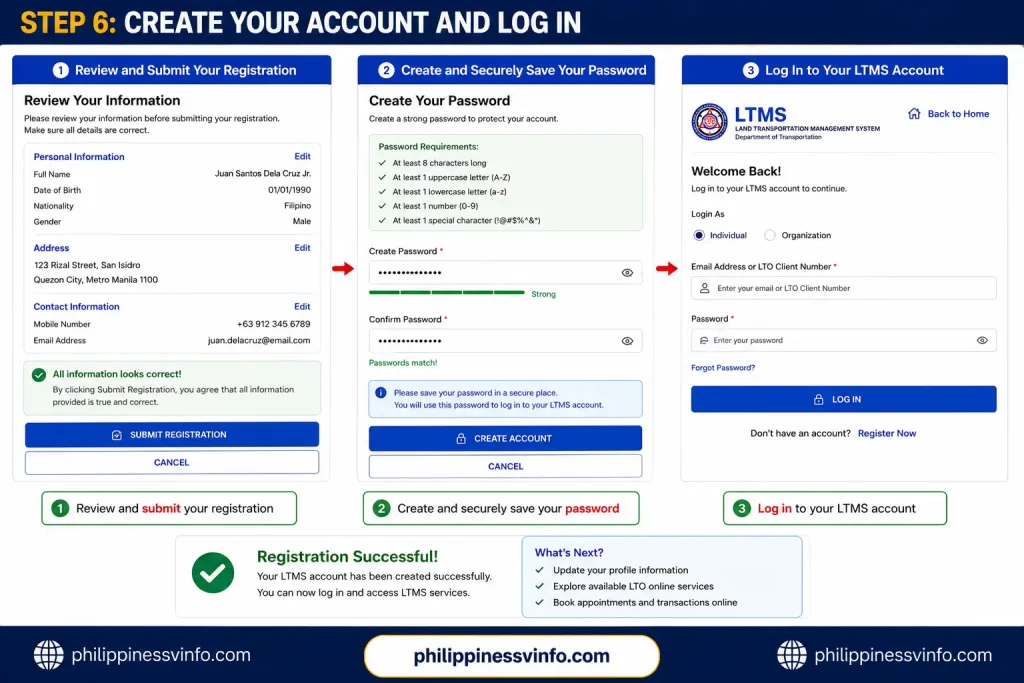
Step 6: Create Your Account and Log In
Review your information, create a strong password, and submit your registration. After your account is successfully created, use your registered email or LTO Client Number and password to log in.
- Review and submit your registration
- Create and securely save your password
- Log in to your LTMS account
How to Create a Strong LTMS online Portal Password
After completing the verification process, you may be asked to create a password for your LTMS account. Since this password helps protect your personal LTO information, avoid using easy-to-guess details such as your full name, date of birth, mobile number, or other information that someone could easily know.
The LTMS registration requirements specify that the password should contain at least eight characters, including uppercase and lowercase letters, a number, and a special character.
A strong password should be:
- Long enough to make guessing difficult
- Unique and used only for your LTMS account
- Made with a combination of letters, numbers, and symbols
- Difficult for other people to predict
Never post your password publicly, send it through Messenger or WhatsApp, or provide it to anyone who claims they can process your LTO transaction for you.
Security warning: Your password and OTP are private account credentials. Anyone asking you to provide these details should be treated with caution.
LTMS online Portal Login: How to Access Your Account
After your account has been verified and your password has been successfully created, you can return to the LTMS Portal and sign in to your account.
Open the Official LTMS Portal
The current LTO login page provides a field where users can enter either their registered email address or LTO Client Number. You will also need to enter your account password and the displayed security code. A Forgot Password option is available if you cannot remember your credentials.
LTMS Login Steps
Follow these steps to access your LTMS account:
- Open the official LTMS online Portal.
- Select Log In.
- Enter your registered email address or LTO Client Number.
- Type your account password.
- Enter the displayed security code.
- Select Sign In.
- Wait for your LTMS dashboard to load.
The current official login system confirms that users can enter either their registered email address or LTO Client Number in the login field.
Tip: If you are signing in from a shared or public computer, avoid saving your username or login details unless you are comfortable with that device storing your information.
What Is an LTO Client Number?
An LTO Client Number is an important identifier connected to your LTMS account. It can be used as an alternative to your registered email address when logging in to the portal.
The official login page identifies this credential as the LTO Client Number and provides a login field that accepts either an email address or Client Number.
Keep your Client Number in a secure place because it may be useful when managing your LTO account or completing certain transactions. It can also help identify your records within the LTO system.
If you have recently completed registration, check the email address you used during the process for messages from the LTO system that may contain your account or Client Number information.
Forgot Your LTMS Portal Password?
Forgetting your LTMS password does not necessarily mean that you need to register for another account. The official login page provides a Forgot Password option that can be used to recover access to your existing account.
Password Recovery Process
If you cannot remember your password, use the official account-recovery process instead of creating another account.
Follow these steps:
- Open the official LTMS login page.
- Select Forgot Password.
- Follow the recovery instructions displayed by the LTMS system.
- Provide the requested account information.
- Check your registered email for password-reset instructions.
- Create a new secure password when prompted.
- Return to the LTMS login page and sign in using the new password.
If you do not see the password-reset email, check your Spam, Junk, or Promotions folders. Also confirm that you are checking the email address associated with your LTMS account.
Avoid creating multiple LTMS accounts simply because you have forgotten your password. Try the official password-recovery process first.
What Services Can You Access Through LTMS?
An LTMS account is more than simply a username and password. Depending on your account type, eligibility, and transaction requirements, the portal can provide access to different digital services and LTO-related information.
The official LTMS platform includes areas such as the CDE Online Validation Exam, Driver’s License Renewal Course, LTO Client ID Tutorial, Driver’s Manual, Licensing Information, Motor Vehicle Registration, land-transport laws, fines, and penalties.
Some of the services and resources associated with LTMS include the following.
Driver’s Licence Services
The LTMS Portal supports various online processes related to driver’s licensing. Depending on the transaction and your eligibility, some preliminary steps can be completed online, which may reduce the amount of work required during an in-person visit to an LTO office.
The LTO also announced in January 2026 that a digital driver’s licence can be accessed through the LTMS platform or eGovPH digital services.
CDE Online Validation Exam
The LTMS online Portal provides the Comprehensive Driver’s Education (CDE) Online Validation Exam for applicable driver’s licence renewal transactions.
According to the official exam information, the test contains 25 questions and requires a passing score of 80%, meaning applicants need at least 20 correct answers. The exam information also states that there is no time limit for answering the questions, although users must log in to access the examination.
E-Learning Materials
The LTMS online Portal also provides educational resources for drivers, applicants, and people preparing for licensing requirements. These materials cover topics such as driving fundamentals, road courtesy, road safety, driver’s responsibilities, licensing information, and other related subjects.
These learning resources can be helpful for applicants who want to understand driving responsibilities and prepare for applicable LTO requirements.
Motor Vehicle Information
The LTMS platform also provides information and services related to motor vehicles. Its learning and information sections include resources concerning Motor Vehicle Registration.
However, the requirements for a specific transaction can vary. Always review the instructions and requirements displayed by LTO because not every motor-vehicle process can necessarily be completed entirely online.
Common Problems and Fixes
There may be occasions when the LTMS registration or login process does not work as expected. A failed login or incomplete registration does not automatically mean that your account is invalid.
The following are some common problems and things you can check:
| Problem | What to Check |
|---|---|
| OTP not received | Check your mobile signal and wait before requesting another OTP |
| Verification email missing | Check your Spam, Junk, and Promotions folders |
| Verification link no longer works | Use the available verification or account-recovery process |
| Password forgotten | Use the official Forgot Password option |
| Login page will not load | Refresh the page or try an updated browser |
| Website behaves strangely | Clear browser cache and cookies, then try again |
| Existing LTO record appears | Avoid creating a duplicate account and use the appropriate recovery process |
For missing OTPs, check your mobile connection and allow some time before requesting another code. If an email verification link has expired, follow the available verification instructions instead of repeatedly using the old link.
If the system indicates that an LTO record or account already exists, avoid creating another profile. Instead, use the appropriate account-recovery option to regain access to your existing account.
If the LTMS Website Is Slow
Government websites can sometimes experience heavy traffic, maintenance, or temporary technical problems. If the LTMS Portal is loading slowly, wait for a short period and refresh the page rather than repeatedly submitting the same form.
You can also try the following:
- Use an updated version of Chrome, Firefox, or Edge
- Make sure you have a stable internet connection
- Clear temporary browser data such as cache and cookies
- Switch between Wi-Fi and mobile data if one connection is unstable
- Try again later if the service appears to be temporarily unavailable
Most importantly, do not immediately assume that your registration failed because a page stopped loading. First check whether you received a confirmation email, notification, or other indication that your registration was processed before submitting another registration.
Tips for Using the LTMS Portal
If you are using the LTMS Portal Philippines for registration, driver’s license services, vehicle transactions, or other LTO services, these tips can help you avoid common account and transaction problems. The official LTMS online Portal provides registration and login access for LTO clients.
- Use the official LTMS Portal only. Always check that you are using the official LTO website before entering your personal information or login credentials.
- Use an active email address. Your email may be needed for account verification, notifications, and receiving transaction-related documents.
- Keep your LTO Client Number safe. Your Client Number is an important identifier for accessing your LTMS account and completing LTO transactions.
- Do not create duplicate accounts. If you already have an LTMS account, try to recover your existing account instead of registering again. LTO has a dedicated process for issues involving duplicate accounts and account access.
- Check your information carefully. Make sure your name, date of birth, contact information, and other personal details are accurate before submitting an application.
- Keep your password private. Never share your LTMS password, verification codes, or other account credentials with another person.
- Use “Forgot Password” when necessary. The official login page provides a Forgot Password option for users who cannot remember their credentials.
- Check your email after submitting transactions. LTO transactions may generate confirmations or electronic documents through the system or your registered email.
- Keep vehicle documents available. For vehicle-related transactions, have relevant documents such as your Official Receipt (OR) and Certificate of Registration (CR) ready when required. LTO’s Citizen’s Charter includes online vehicle-renewal procedures through the LTMS Portal.
- Complete online learning requirements when applicable. The LTMS eLearning section includes resources such as the Driver’s Manual, licensing information, motor vehicle registration, road safety, and other courses.
- Use the official CDE section for license renewal requirements. The LTMS Portal provides a CDE Online Validation Exam for applicable driver’s-license renewal transactions.
- Contact LTO if your account information is incorrect. LTO’s Client Care process covers issues such as account verification, email correction, duplicate accounts, and linking licenses or other records.
How to Keep Your LTMS Account Secure
Your LTMS online Portal account may contain information connected with your LTO records and transactions, so protecting your login credentials is important. Basic security practices can help reduce the risk of unauthorized access.
Use the Official Website
Always start your registration or login process from the official LTMS Portal rather than an unfamiliar website that claims to offer LTO registration services.
Protect Your Password
Never give your LTMS password to a fixer, stranger, friend, or another person who claims they need it to complete an LTO transaction for you.
Keep OTPs Private
An OTP is a temporary security code intended for account verification or a specific transaction. Never forward, share, or disclose your OTP to another person.
Check the Website Address
Before entering your personal information, password, or verification details, carefully check the website address and make sure you are using the genuine LTO portal.
Avoid Suspicious Assistance
Be cautious of anyone who asks for your password, OTP, or other security credentials. A person claiming to be associated with LTO should not automatically be trusted simply because they offer to help with your registration or transaction.
Security reminder: Never share your LTMS password or OTP with people who claim to be LTO fixers, representatives, or intermediaries. Keep your account credentials private and complete sensitive account actions only through official LTO channels.
Frequently Asked Questions About LTMS Portal Registration
Conclusion
The LTMS Portal makes it easier for drivers, applicants, motorists, and vehicle owners to access eligible LTO services online. Starting with the official portal, preparing the required information, completing email and mobile verification, and creating a secure password can make the registration process much smoother.
After registration, users can log in with their registered email address or LTO Client Number and access services and resources available for their account, including driver’s licence-related services, CDE learning and validation resources, motor vehicle information, and other LTO online functions. However, the services available and whether a transaction can be completed fully online depend on the user’s eligibility and current LTO requirements.
If you experience an OTP, verification, password, login, or existing-record problem, use the official recovery and troubleshooting options instead of creating duplicate accounts. Most importantly, always use the genuine LTMS website and never share your password or OTP with fixers, strangers, or unofficial representatives.