
51Talk Sign & Login Philippines 2026: Sign Up, Teacher Application & Requirements

If you want to access the 51Talk Sign page in the Philippines, you can use the official 51Talk website to log in to your existing account. The platform also provides a registration process for individuals interested in becoming online English teachers. New applicants may need to complete several stages of the recruitment process, including registration, language assessment, orientation, training, demo teaching, and onboarding before they can start teaching.
If you are a new user and do not have an account yet, you can begin by completing the official 51Talk Sign Up process. This guide covers how to access 51Talk Sign, what you should prepare before logging in, how aspiring teachers can register, and what steps you can take when common login or technical problems occur.
51Talk Sign-In Requirements
51Talk Sign refers to the online sign-in process that allows registered 51Talk users to access their accounts through the official platform. After completing a successful login, users can access the services, tools, and account features available for their specific role, such as teacher-related resources or other platform functions.
For teachers, 51Talk provides an online English teaching environment where educators conduct one-on-one English lessons with students using prepared teaching materials and digital resources. The platform also provides training and support for aspiring teachers, making it possible for qualified applicants to complete the required preparation stages even if they do not have extensive previous experience with online English teaching. Applicants can use the 51Talk Sign Up process to begin their journey toward becoming an online English teacher.
The official 51Talk platform may also provide separate teacher-focused resources and systems for areas such as technical assistance, teacher guides, certificates, training information, and other requirements. Therefore, users should make sure they are accessing the correct service for the task they want to complete rather than assuming that every 51Talk page uses the same login process.
What Is 51Talk Sign?
Before using 51Talk Sign, make sure your computer, browser, and internet connection are ready. This is especially important for teachers because online lessons require reliable audio, video, and internet performance. For home-based teachers, the current requirements include Windows 10 or newer, an Intel Core i5 8th-generation processor or an equivalent AMD Ryzen 5 processor, at least 8GB of RAM, and around 100GB of available storage. You should also have an HD webcam, a noise-cancelling headset with a microphone, and a stable internet connection of at least 25 Mbps. Meeting these requirements can help ensure a smoother 51Talk Sign experience and reduce technical issues during online classes.
| Requirement | Recommended Setup |
|---|---|
| Operating System | Windows 10 or newer |
| Processor | Intel Core i5 8th Gen or newer / AMD Ryzen 5 equivalent |
| RAM | At least 8GB |
| Available Storage | At least 100GB |
| Webcam | HD, 720p or higher |
| Headset | Noise-cancelling headset with microphone |
| Internet | Stable 25 Mbps or higher |
| Teaching Space | Quiet and professional environment |
| Background | Plain white background |
| Lighting | Bright, front-facing lighting |
The official guidance also indicates that pocket Wi-Fi and mobile hotspots are not permitted for home-based teaching. A stable wired internet connection is therefore a better option when preparing for the teaching and technical requirements.
New to 51Talk? Start With Sign Up
If you have never created a 51Talk account, you should not attempt to use the existing-user login process first. New applicants need to register through the official 51Talk Sign Up page before they can access an account.
The registration process is particularly important for people who want to become online English teachers. Depending on the current recruitment process, applicants may progress through profile registration, language assessment, orientation, technology checking, new teacher training, demo teaching, onboarding, and eventually teaching.
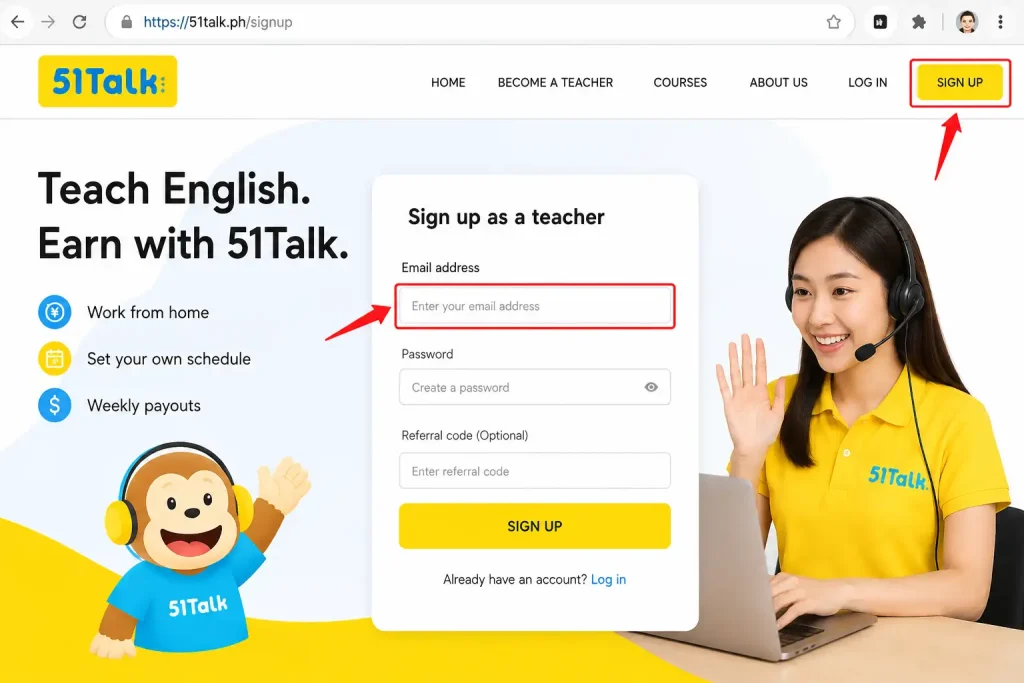
Step 1: Open the Official Sign Up Page
Begin your application by accessing the official 51Talk registration page. Make sure you are using the company’s official website and have an active email address available.
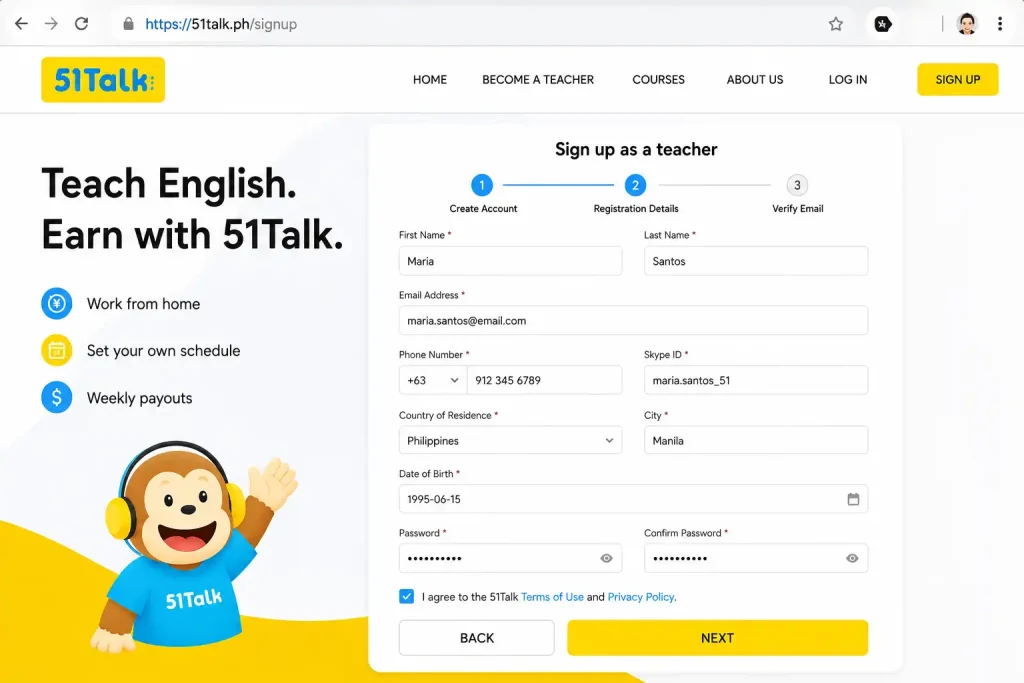
Step 2: Complete Your Registration Details
Enter the information requested during registration and make sure your details are accurate. Incorrect or incomplete information can create unnecessary problems during later application stages.
Step 3: Complete Your Profile
After registration, complete the required profile information carefully. Your profile can be important during the teacher application process, so avoid leaving required sections incomplete.

Step 4: Complete the Language Assessment
Applicants may be required to complete a language assessment as part of the recruitment process. This stage helps evaluate whether the applicant meets the platform’s English-language requirements.

Step 5: Attend Pre-Service Orientation
After completing the required assessment, applicants may move to pre-service orientation and a technology check. This stage helps applicants understand the teaching process and confirm that their technical setup is suitable.

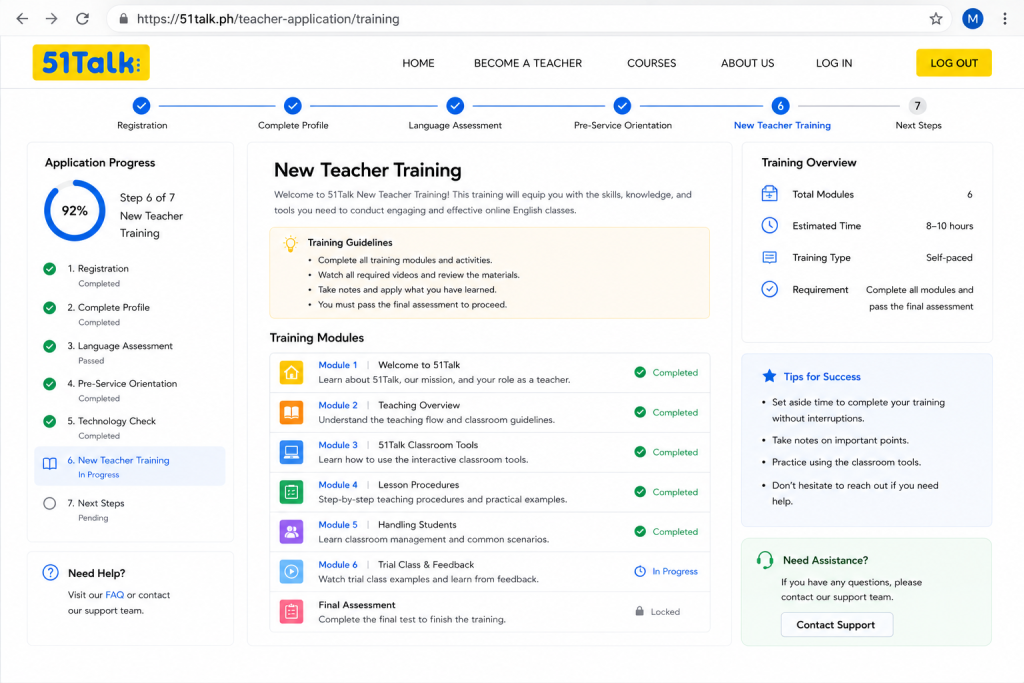
Step 6: Complete New Teacher Training
Applicants who progress through the earlier stages can continue to New Teacher Training. This training helps prepare new teachers for the requirements of online English classes.
Step 7: Complete the Demo Teaching Stage
A demo teaching stage may be required before onboarding. This allows the platform to evaluate your teaching performance and readiness for online English instruction.
What to Prepare Before Registration
Use an active email address and provide accurate information during the application process. 51Talk’s official recruitment guidance recommends completing the profile carefully so you can move through the following stages without avoidable delays.
You should also prepare your teaching environment early if you intend to work from home. This means having the required computer, webcam, headset, internet connection and suitable teaching space before you reach the technical assessment stage.
51Talk Teacher Application Process
For anyone interested in becoming an online English teacher, 51Talk Sign is only the beginning. New applicants first need to create an account through the official 51Talk website and then complete the recruitment stages. The current recruitment journey consists of five main stages: Language Assessment, Pre-Service Orientation and Tech Check, New Teacher Training, Demo and Onboarding, and Start Teaching.
Step 1: Complete the Language Assessment
After creating and completing your profile, the next stage is the language assessment. This assessment helps determine whether an applicant meets the communication and English-language requirements expected for online teaching.
Step 2: Attend Pre-Service Orientation and Tech Check
Applicants who progress through the language assessment can move to the pre-service orientation and technology check. This stage introduces important information while also confirming that your equipment is suitable for online teaching.
Step 3: Complete New Teacher Training
Successful applicants then proceed to New Teacher Training. This stage is designed to help new educators understand the online teaching process, platform expectations, lesson procedures, and practical responsibilities.
Step 4: Complete Demo and Onboarding
The recruitment journey also includes a demo and onboarding stage. During this part of the process, applicants can demonstrate their teaching approach and complete the remaining requirements needed before becoming an active teacher.
Step 5: Start Teaching
After successfully completing the required recruitment and onboarding stages, an approved applicant can move toward becoming an active 51Talk online English teacher. The exact timing and requirements can depend on the current recruitment process and the applicant’s status.
What Can You Do After 51Talk Sign?
The features available after 51Talk Sign depend on the type of account you have and the specific part of the 51Talk system you are accessing. Teachers, students, and parents may have different dashboards and available tools.
Teacher-Focused Functions
A teacher account is primarily designed to support the online English teaching experience. Depending on your account status, you may have access to classroom tools, teaching resources, student-related information, and other teacher services.
The exact functions available can change according to your role, account status, and the specific 51Talk system you are using.
Student and Parent Activities
For students and parents, the main purpose of the platform is online English learning. Available features can vary depending on the account and service, so not every user will see the same options after signing in.
If a particular feature is not visible after 51Talk Sign, this does not necessarily mean that your account is malfunctioning. Some functions are restricted to specific user roles or account types.
51Talk Technical Requirements for Home-Based Teachers
| Technical Requirement | 51Talk Teacher Requirement |
|---|---|
| Computer / Operating System | Windows 10 or newer |
| Processor | Intel Core i5 8th-generation or AMD Ryzen 5 equivalent |
| RAM | At least 8GB |
| Storage | At least 100GB of available storage |
| Webcam | HD webcam, 720p or higher |
| Headset | Noise-cancelling headset with a working microphone |
| Internet Connection | Stable connection of at least 25 Mbps |
| Pocket Wi-Fi / Mobile Hotspot | Not permitted for home-based teaching |
Prepare Your Teaching Space
Your teaching environment is just as important as your computer and internet connection. A quiet, organised, and professional space can help you maintain clear communication and present yourself appropriately during online lessons.
Home-Based Teacher Preparation Checklist
Before beginning the technical check or teaching process, review your setup to make sure the major requirements are ready. Preparing everything in advance can help reduce avoidable technical problems during the application and teaching stages.
How to Deal With a Failed 51Talk Sign Attempt
A failed 51Talk Sign attempt does not automatically mean that your account information is incorrect. Login problems can sometimes result from incorrect credentials, browser data, internet connectivity, or temporary technical issues.
Check Your Email and Password
If the sign-in page rejects your credentials, carefully enter them again. Passwords are normally case-sensitive, so even a small difference can prevent a successful login.
Use the Password Recovery Option
If you cannot remember your password, use the password recovery feature provided on the official sign-in page instead of repeatedly guessing your password.
Clear Browser Data
Sometimes outdated cookies or cached browser files can interfere with a website. Clearing the relevant browser data can help determine whether the issue is caused by stored website information.
What If the 51Talk Website Does Not Load?
If the 51Talk Sign page is slow or fails to load, first determine whether the problem affects only 51Talk or your internet connection generally. If other websites are also slow, the issue may be related to your connection rather than the 51Talk website.
Additional Browser Troubleshooting
If your internet connection appears normal but the 51Talk website still does not load correctly, try a few basic browser troubleshooting steps. These checks can help identify whether the issue is caused by your current browser session.
Always avoid entering your account credentials into websites that imitate the 51Talk login page. Verify the official website address before submitting any private account information.
Important 51Talk Sign Security Practices
Your login credentials should always be treated as private information. Even if someone claims that they can help with your account, you should not give them your password or other confidential login details.
For teachers, the same security approach should be followed when checking recruitment information, technical requirements, application instructions, or account-related communications. When possible, rely on official 51Talk resources for these details.
51Talk Sign vs Sign Up
Understanding the difference between 51Talk Sign and 51Talk Sign Up can prevent confusion. Sign In is intended for people who already have an account, while Sign Up is for people who need to create a new account.
| Option | Who Should Use It? | Purpose |
|---|---|---|
| 51Talk Sign | Existing users | Access an existing account |
| 51Talk Sign Up | New users | Create or register an account |
| Teacher Application | Prospective teachers | Begin the teacher recruitment process |
| Password Recovery | Existing users who cannot remember their password | Recover or restore account access |
If you have already registered, use the official 51Talk Sign page to access your account. If you have never created an account, start with 51Talk Sign Up and complete the registration process before attempting to sign in.
51Talk Sign-In: Final Checks Before You Start Teaching
Once your 51Talk Sign access is working, it is a good idea to complete a few final checks before depending on the platform for regular online lessons. Having your account, equipment, internet connection, and teaching environment ready can reduce avoidable interruptions during classes.
For teachers, successful 51Talk Sign-In is only the first step. Your computer, webcam, headset, microphone, internet connection, lighting, and teaching space should all be checked before you begin teaching.
Keep Your Account Information Secure
Your 51Talk account should be protected like any other online education account. Keep your password private and avoid storing your login information on shared computers. When using 51Talk Sign, always make sure you are accessing the official website.
Check Your Equipment Regularly
A computer that works normally for browsing may still have problems during live video classes. Teachers should regularly test their webcam, microphone, headset, and internet connection to make sure everything is working properly before a lesson begins.
Prepare Your Teaching Environment
Your physical teaching space can affect the quality and professionalism of an online lesson. Before starting classes, make sure the area is quiet, organised, well-lit, and suitable for video teaching.
Complete a Pre-Class Check
A short pre-class inspection can help identify equipment or connection problems before they affect a live lesson. Making these checks part of your routine can save time and reduce unexpected interruptions.
51Talk Sign-In Problems and Their Solutions
Even after completing registration, users may occasionally experience difficulties when trying to access their accounts through 51Talk Sign In. The appropriate solution depends on the specific problem, so begin with simple checks before assuming that your account is unavailable.
| Problem | What to Try |
|---|---|
| Wrong password | Re-enter the password carefully |
| Forgotten password | Use the available password recovery option |
| Login page will not load | Check your internet connection and refresh the page |
| Browser behaving unexpectedly | Clear browser cache and cookies |
| Website works poorly in one browser | Try another supported browser |
| Video or audio problems | Check the webcam, headset, and microphone |
| Slow connection | Test and improve your broadband connection |
| Teacher setup problem | Review the published technical requirements |
Check Your Login Details
Incorrect credentials are one of the simplest reasons a 51Talk Sign attempt may fail. Carefully review the information you entered before trying another login attempt.
Recover a Forgotten Password
If you cannot remember your password, use the password recovery option provided on the official 51Talk Sign-In page instead of repeatedly guessing different passwords.
Troubleshoot Your Browser
Browser-related problems can sometimes prevent a website from working correctly. If the sign-in page behaves unusually, clearing stored website data or switching browsers can help identify the cause.
What to Do If the 51Talk Website Does Not Load
If the 51Talk website is slow or does not open, first check whether other websites are working normally. If multiple websites are affected, the problem may be related to your internet connection rather than the 51Talk Sign page.
Additional Loading Checks
If the website still does not load properly after checking your connection, perform a few additional browser and device checks. These can help determine whether the problem is specific to your browser or computer.
Avoid entering your username, password, or other account information into websites that imitate the 51Talk login page. Always verify the official website before signing in.
51Talk Sign Security Reminders
Keeping your 51Talk account secure is important whether you are applying to become a teacher, already teaching online, or accessing the platform as a student or parent. Your login credentials contain private account information, so they should always be handled carefully and never shared with other people. When using 51Talk Sign, make sure you access your account through the official 51Talk website or another trusted source rather than unfamiliar websites or links. Avoid entering your email address, password, or other account details on pages that you cannot verify. It is also a good practice to check the website address before using 51Talk Sign and to log out when using a shared or public computer.
Final Checklist Before Teaching
Before starting regular online English lessons, take a few minutes to confirm that your account and teaching setup are ready. This final check can help prevent common problems with video, audio, connectivity, or the teaching environment.
If a technical or account problem remains after basic troubleshooting, use the appropriate official 51Talk support or help resources rather than relying on unofficial login pages or unverified advice.
Frequently Asked Questions About 51Talk Sign & Login
Conclusion
The 51Talk Sign & Login Guide Philippines 2026 explains how existing users can access their accounts and how new applicants can begin their journey toward becoming online English teachers. Existing users can use the official sign-in page, while new applicants should start with 51Talk Sign Up and complete the required recruitment stages, including language assessment, orientation and tech check, training, demo, onboarding, and starting teaching.
For teachers, preparing the required computer, webcam, headset, stable internet connection, lighting, background, and quiet teaching space is an important part of the process. If you experience a 51Talk Sign login problem, checking your credentials, internet connection, browser data, and equipment can help resolve common issues. Always use the official 51Talk website and keep your account information secure when accessing the platform.