GSIS Online Philippines 2026: Login, Registration, Loans, Claims & Member Guide
Government employees and pensioners can now handle many routine GSIS transactions through digital services instead of visiting a GSIS branch for every request. GSIS Online gives members convenient access to membership records, loans, claims, pension information, and other account-related services.
The main official starting point is the GSIS official website. GSIS also provides GSIS Touch, a mobile application that brings several digital services together. Members can use the app to check records, make tentative loan and claim computations, submit eligible applications, monitor loan transactions, receive payment-posting notifications, access the GSIS Digital ID, and complete APIR using facial authentication.
For active government employees, GSIS Online can make it easier to monitor membership information, premiums, loans, repayments, and claims. Pensioners can also use available digital services for pension-related information and Annual Pensioners Information Revalidation (APIR).
GSIS Online Services at a Glance
| Digital Service | Main Users | What You Can Access |
|---|---|---|
| GSIS Touch | Active members and pensioners | Records, loans, claims, APIR, Digital ID and notifications |
| eGSISMO | Active members | Membership, loan and claim records and tentative computations |
| Pension Services | Pensioners and beneficiaries | Pension information, disbursement details and APIR-related services |
| GSIS Website | Members, pensioners and the public | Announcements, forms, service information and branch details |
GSIS Touch brings together several functions that members previously accessed through separate digital channels. Depending on eligibility and the service available to the account, members can check membership, loan and claim records, view pension disbursements, manage loan transactions, access the electronic Citizen’s Charter, and locate GSIS branches. Visit Homepage
How to Register for GSIS Online
Before beginning your GSIS Online registration, prepare your Business Partner (BP) Number, date of birth, and mobile number registered with GSIS. Your BP number is an important member identifier and may be required when creating or verifying your digital account.
For GSIS Touch registration, the usual process involves entering your BP number and birth date, verifying the OTP sent to your registered mobile number, and creating your login credentials.
What You Need Before Registration
Make sure you have:
If you do not know your BP number, contact your agency’s Authorized Agency Officer (AAO) or the appropriate HR or agency personnel for assistance.
GSIS Online Registration
Step 1: Open GSIS Touch or the Applicable GSIS Online Service
Start by accessing the official GSIS digital service. For mobile users, open the official GSIS Touch application. You can also begin from the official GSIS website and follow the available online-service options.
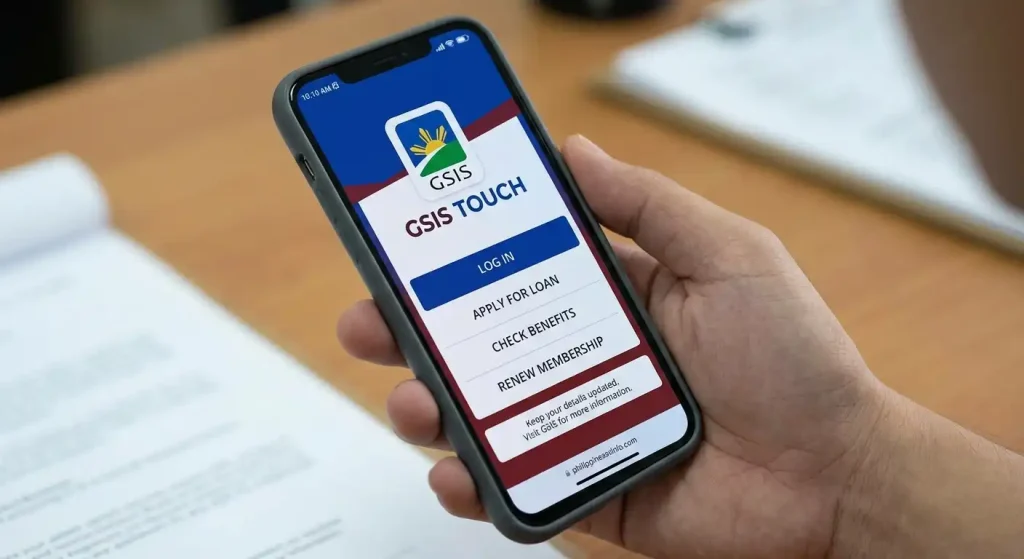
Step 2: Select the Registration or Sign-Up Option
Look for the registration or account-creation option and begin the enrollment process. The system will ask for information that helps match your digital account with your GSIS membership record.
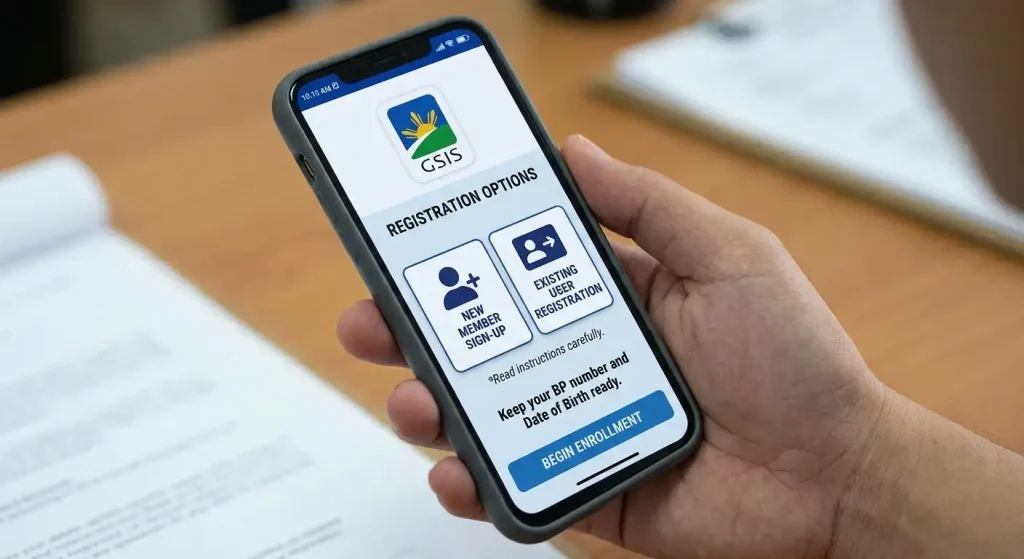
Step 3: Enter Your BP Number and Birth Date
Provide your GSIS BP Number and date of birth when requested. Enter these details carefully because incorrect information can prevent the system from matching your account with your GSIS record.

Step 4: Verify Your Mobile Number With the OTP
After submitting your details, GSIS may send a one-time password (OTP) to the mobile number registered in your GSIS record. Enter the OTP within the required verification process.
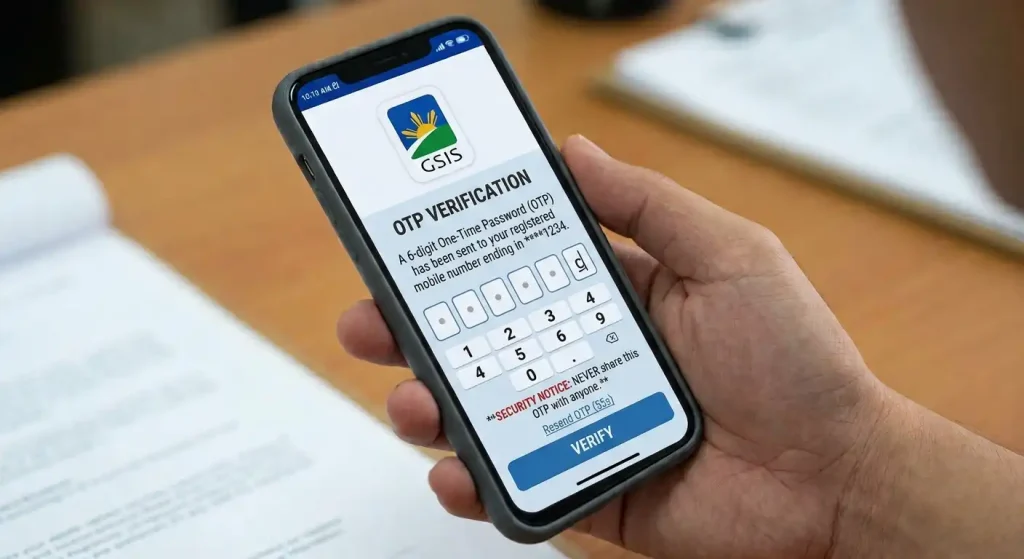
Step 5: Create Your Username and Password
After successful verification, create the credentials you will use to access the digital service. Choose a strong password that is difficult for other people to guess.

Step 6: Complete Registration and Check Your Account
Finish the remaining registration requirements and sign in to your newly created account. Once inside, review your member information and make sure the displayed details are correct.

Important: Never give your OTP, password, or other GSIS account credentials to another person. If your mobile number is not registered or is outdated, update your GSIS record before attempting OTP-based verification.
GSIS Touch: The Mobile Side of GSIS Online
For many members, GSIS Touch is the most convenient way to access GSIS Online services from a smartphone. The application provides several functions for active members and pensioners, including records access, loan services, claims-related features, Digital ID, online enrolment, APIR, and branch information.
Official GSIS Touch information page
Depending on the member’s eligibility and the services currently available, GSIS Touch can be used for:
GSIS has also made GSIS Touch available to members in various countries outside the Philippines, making digital access useful for eligible government workers and pensioners who are currently abroad.
eGSISMO and GSIS Online Member Records
eGSISMO, or Electronic GSIS Member Online, represents the web-based side of GSIS Online services. It allows eligible members to access important membership and financial information through an online platform rather than depending entirely on over-the-counter transactions.
Through the available eGSISMO services, members may be able to review their membership profile, loan records, claim records, and tentative computations for applicable social insurance benefits and loans.
Active government employees should check their records regularly. Reviewing your account can help you notice missing or delayed postings earlier, particularly when it comes to premium payments, loan repayments, and other financial transactions connected with your GSIS membership.
GSIS Online vs GSIS Touch
GSIS Online/eGSISMO is useful for members who prefer accessing GSIS services through a web browser, while GSIS Touch is designed specifically for smartphone use and provides additional mobile-focused functions.
GSIS Touch can be particularly convenient when you need to check records while away from a computer, monitor loan activity, access the GSIS Digital ID, or complete eligible digital transactions.
Both channels are part of GSIS’s broader move toward digital service delivery, although the exact features available can depend on the member’s account, eligibility, and current GSIS implementation.
What If Your GSIS Mobile Number Is Not Registered?
An unregistered or outdated mobile number can cause problems when you attempt GSIS Online registration or need to receive an OTP. Before repeatedly requesting a verification code, check whether your current mobile number is properly recorded with GSIS.
According to GSIS information for GSIS Touch, members whose mobile number is not registered may update it through a GWAPS Kiosk, their Authorized Agency Officer (AAO), or a GSIS branch.
After the mobile number has been successfully updated, you can try the GSIS Online registration or verification process again.
GSIS Online Benefits and Member Records
GSIS provides social insurance and retirement-related protection to government workers. Depending on membership status, eligibility requirements, contribution history, and the applicable retirement or benefit rules, GSIS benefits may include life insurance, retirement, disability, death, and survivorship benefits.
The benefit available to an individual member can vary significantly. For this reason, members should check their own GSIS records and use official GSIS channels when determining eligibility, benefit amounts, retirement options, or claim requirements.
GSIS Online makes routine account monitoring easier because members can review information connected with their membership without waiting until retirement or the filing of a claim. Regularly checking records can also help identify questions about contributions, loans, repayments, or claims that may need to be addressed with GSIS or the member’s agency.
Common GSIS Loan Options
| Loan | Main purpose |
|---|---|
| GFAL | Financial assistance and eligible debt consolidation |
| Multi-Purpose Loan (MPL) | General financial needs of eligible members |
| Emergency/Calamity Loan | Assistance for members affected by qualifying calamities |
| Policy/Computer Loan | Financing connected with eligible policy value or computer purchases |
Before submitting a loan application through GSIS Online, check the information shown in your account carefully. A tentative computation is an estimate and should not automatically be treated as a final approved loan amount.
How to Apply for a GSIS Loan Online
The mobile application is designed to let eligible members perform several loan transactions remotely. GSIS identifies loan tentative computation, online loan application, loan-status checking and related records among the services available through GSIS Touch.
A typical GSIS Online loan application follows this process:
- Open the GSIS Touch app and sign in to your account.
- Go to the Loans section.
- Select Perform Loan Tentative Computation to see the estimated proceeds and repayment information.
- Choose Loan Application when you’re ready to proceed.
- Select the applicable loan product.
- Review your personal and employment details.
- Provide the required identification documents when requested.
- Complete facial authentication if the transaction requires it.
- Submit the application for processing.
- Monitor the application through Loan Status.
Some transactions require action or approval from the member’s agency. For this reason, submitting an application through GSIS Online does not necessarily mean the loan is immediately approved.
What Happens After You Apply?
After submission, the application can move through the required verification and agency process. Keep checking your GSIS Touch account for status updates or notifications.
The source information provided for this guide indicates that approved loan proceeds are disbursed directly to the member’s GSIS UMID or eCard account. However, members should always check the current transaction details displayed in their account and official GSIS announcements because procedures can change.
Best practice: Take a moment to review your loan balance, existing deductions and repayment records before applying for another loan. This gives you a clearer picture of the financial commitment you’re taking on.
Checking GSIS Loan Records Online
You don’t have to wait until you need another loan to review your GSIS account. Regularly checking your records can help you understand how much you have already repaid and whether employer-posted payments are appearing correctly.
Through GSIS digital services, members can monitor loan-related information, including repayment records and applicable account details.
When reviewing your GSIS Online account, look for:
If something appears inconsistent, don’t assume the information is correct simply because it appears online. Compare it with your agency records and contact the appropriate GSIS or agency office when clarification is needed.
GSIS Online Claims: Retirement, Insurance and Other Benefits
GSIS Online isn’t limited to loans. Eligible members and beneficiaries can also use digital channels for certain claims and benefit-related transactions.
The claims process may involve different requirements depending on the type of claim. Retirement claims, life insurance claims and other benefit claims can require supporting records such as service documents, clearances, forms or other evidence.
How to Submit a GSIS Claim Online
If the claim service is available to you through GSIS Touch, the general workflow is:
- Sign in to GSIS Touch.
- Open the Claims section.
- Use Claim Tentative Computation when available to obtain an initial estimate.
- Choose Claims Application.
- Select the appropriate claim type.
- Review the information displayed in your account.
- Upload the required supporting documents.
- Submit the application.
- Use View Claim Records to monitor the transaction.
The exact documents required depend on the claim. Don’t upload random documents simply to complete a checklist; use the requirements shown for your particular transaction.
Examples of GSIS Claims
Depending on eligibility and the applicable programme, claims may relate to:
A claim can involve more than one stage of review. If additional information is requested, provide it through the appropriate official channel rather than sending sensitive documents to unofficial websites or individuals.
GSIS Retirement Benefits: What Members Should Understand
Retirement is one of the most important reasons government employees monitor their GSIS records. However, there isn’t one single retirement payment that applies to every member.
GSIS retirement benefits can depend on the retirement law and option applicable to the member. The source information provided for this article identifies R.A. 8291, R.A. 660 and R.A. 1616 among the laws associated with retirement benefits.
Depending on the applicable option and eligibility, retirement benefits may involve a lump-sum payment, pension or another benefit arrangement.
That means an online calculator or general example should not be treated as a personalised retirement decision. Before choosing a retirement option, review your actual GSIS records and obtain official guidance based on your individual circumstances.
Life Insurance, Disability, Death and Survivorship Benefits
GSIS membership also provides different forms of social insurance protection.
Life Insurance
Government employees may have coverage under applicable GSIS life insurance programmes, including the Life Endowment Policy (LEP) or Enhanced Life Policy (ELP). Depending on the policy and eligibility, benefits can include maturity benefits and death indemnity.
Disability Benefits
A member who experiences qualifying disability may be entitled to financial support under the applicable GSIS programme. Depending on the circumstances, this may take the form of periodic income or a lump-sum benefit.
Death Benefits
GSIS provides benefits connected with the death of an eligible member or pensioner. The exact benefit and documentation depend on the member’s circumstances and applicable rules.
Survivorship Benefits
When a member or pensioner dies, eligible legal heirs or dependants may receive survivorship benefits under the applicable GSIS provisions. These benefits can involve continuation of pension payments or lump-sum benefits.
Because eligibility can be highly specific, the safest approach is to check the official GSIS requirements for the particular benefit instead of relying on a general online checklist.
APIR for GSIS Pensioners
Pensioners need to complete Annual Pensioners Information Revalidation, commonly called APIR, as part of maintaining their pension records.
One of the advantages of GSIS Online services is that eligible pensioners can complete APIR through facial authentication using GSIS Touch rather than automatically travelling to a GSIS branch.
A practical approach is to:
If facial authentication does not work, don’t repeatedly submit incorrect information. Check the app instructions and use an official GSIS support or branch channel if the problem continues.
Tracking Premium Contributions and Loan Repayments
Your GSIS Online account can also help you monitor information posted by your employer. This is especially useful because government employees may want to confirm that premium contributions and loan repayments are being reflected in their records.
Regular monitoring can help you spot a possible posting issue earlier rather than discovering it when you apply for a loan or benefit.
If a payment appears to be missing, gather the relevant agency or payroll information first. Then ask your agency’s authorised personnel or GSIS for clarification.
GSIS Branch Locator and Citizen’s Charter
Digital services don’t replace every GSIS transaction. Some situations still require assistance from a branch or agency representative.
The GSIS digital ecosystem includes access to a branch locator and the Citizen’s Charter, which can help members understand where services are available and what processing requirements may apply.
Use the official GSIS website when you need current agency information, announcements, forms or official contact details.
The Citizen’s Charter is particularly useful when you need to understand the expected process for a transaction. Before visiting an office, check the latest official information where possible so you don’t make an unnecessary trip.
GSIS Online Troubleshooting: OTP, Password and Account Problems
Digital registration is convenient, but authentication problems can prevent access. Most issues can be narrowed down by checking your registered information first.
What to Do If You Don’t Receive the GSIS OTP
If the OTP doesn’t arrive, first confirm that your mobile number is the same number registered with GSIS.
If the number needs updating, the supplied GSIS information identifies three possible channels:
Once the registered mobile number has been corrected, try the verification process again.
What If Your GSIS Online Account Is Locked?
If you can’t access your account because of a password or account problem, look for the Forgot Password option available through the relevant GSIS digital service.
The supplied information indicates that users may reset access using their security questions. Follow the official recovery process rather than creating another account unnecessarily.
Other Common GSIS Online Problems
You may also encounter issues such as:
When an issue concerns your actual membership record, don’t try to correct important information through an unofficial website. Use the official GSIS website, GSIS Touch, your AAO or a GSIS branch.
Smart Habits for Using GSIS Online Safely
Your GSIS account contains personal and financial information, so account security matters.
Use these basic precautions:
A genuine GSIS transaction should not require you to hand over your password or OTP to an intermediary.
Quick GSIS Online Checklist
Before using GSIS Online, keep these basics in mind:
How to Apply for a GSIS Loan Online
One of the most useful parts of GSIS Online is the ability to manage eligible loans digitally. Instead of making every enquiry at a branch, active members can use GSIS Touch to review loan information, perform tentative computations and submit eligible applications.
Available loan programmes may include the GSIS Multi-Purpose Loan (MPL), GSIS Financial Assistance Loan (GFAL), emergency or calamity-related loans, and other applicable loan facilities. Eligibility, loanable amounts and requirements depend on the specific programme and the member’s circumstances.
GSIS Online Loan Application Steps
Open GSIS Touch and sign in to your account. From the available services, select the loan section and review the applicable loan options.
For a typical online transaction:
- Select Loans from the GSIS Touch dashboard.
- Use Perform Loan Tentative Computation to review the estimated loan proceeds and amortisation.
- Select the applicable loan product.
- Review your personal and membership information carefully.
- Provide or upload the documents requested for the transaction.
- Complete facial authentication when required.
- Submit the application for processing.
- Monitor the application through Loan Status.
Where agency approval is required, the transaction may need action from the appropriate Agency Authorized Officer (AAO) before it can proceed.
Important: A tentative computation is an estimate. It should not be treated as a guaranteed final loan amount or approval.
How to File GSIS Claims Online
GSIS Online also supports digital processing for eligible claims. Depending on the service and circumstances, members or beneficiaries may need to provide supporting records before a claim can be evaluated.
Potential claim categories include retirement, life insurance and other applicable benefit claims. Motor vehicle-related claims may also be available through the relevant digital service.
GSIS Online Claims Process
Use GSIS Touch to access the claims section and begin the transaction.
The general process is:
Documents can vary according to the claim type. A retirement transaction, for example, may require records different from those needed for an insurance or motor vehicle claim. Always check the current GSIS instructions for the exact documents required for your particular application.
GSIS Digital ID and Facial Authentication
Another useful feature of GSIS Online is the GSIS Digital ID available through GSIS Touch. The digital service is designed to give members an electronic form of their GSIS identification within the application.
For pensioners, facial authentication can also make Annual Pensioners Information Revalidation (APIR) more convenient. Rather than automatically requiring an in-person visit for every revalidation, eligible pensioners can use the mobile process when the service is available to them.
This is particularly useful for pensioners who have difficulty travelling to a GSIS office. However, users should follow the application’s instructions carefully and make sure the face-recognition process is completed under suitable lighting.
GSIS Online Troubleshooting
Technical problems do happen, but many common access issues have straightforward causes.
GSIS OTP Not Received
If you aren’t receiving the OTP, first check whether your mobile number is the one registered with GSIS. The official GSIS Touch information states that members may update an unregistered mobile number through a GWAPS Kiosk, their AAO or a GSIS branch.
Avoid sharing an OTP with anyone, even someone claiming to represent GSIS.
GSIS Online Account or Password Problem
If you can’t remember your login credentials, use the available account-recovery or password-reset option rather than creating unnecessary duplicate accounts.
Make sure the information you enter matches your GSIS records. If automated recovery doesn’t work, contact GSIS through its official support channels.
GSIS Touch Facial Authentication Fails
Try again in a well-lit location and follow the application’s positioning instructions. Remove anything that prevents the camera from clearly recognising your face.
If the problem continues, use the official GSIS support channels rather than downloading unofficial applications or giving your account details to another person.
Frequently Asked Questions About GSIS Online Philippines
Conclusion
GSIS Online Philippines 2026 has made it easier for government employees, pensioners, and eligible beneficiaries to manage many GSIS-related activities without relying on frequent branch visits. From GSIS Online registration and login to checking membership records, monitoring contributions, reviewing GSIS loans, submitting eligible claims, accessing the GSIS Digital ID, and completing APIR, the digital services provide a more convenient way to stay connected with your GSIS account.
For active members, the biggest advantage is having better visibility into premiums, loan repayments, claims, and other account information. Pensioners can benefit from digital pension services and APIR through GSIS Touch, while members who need financial assistance can review available loan options and tentative computations online.
However, convenience should not replace careful verification. Loan computations are not necessarily final approvals, benefit eligibility depends on individual records and applicable GSIS rules, and documentary requirements can change depending on the transaction. Before submitting sensitive information, always use the official GSIS channels and review the details shown in your account.