SLU Portal 2026: Login, Enrollment, Grades, Admission Guide & Student Guide Philippines
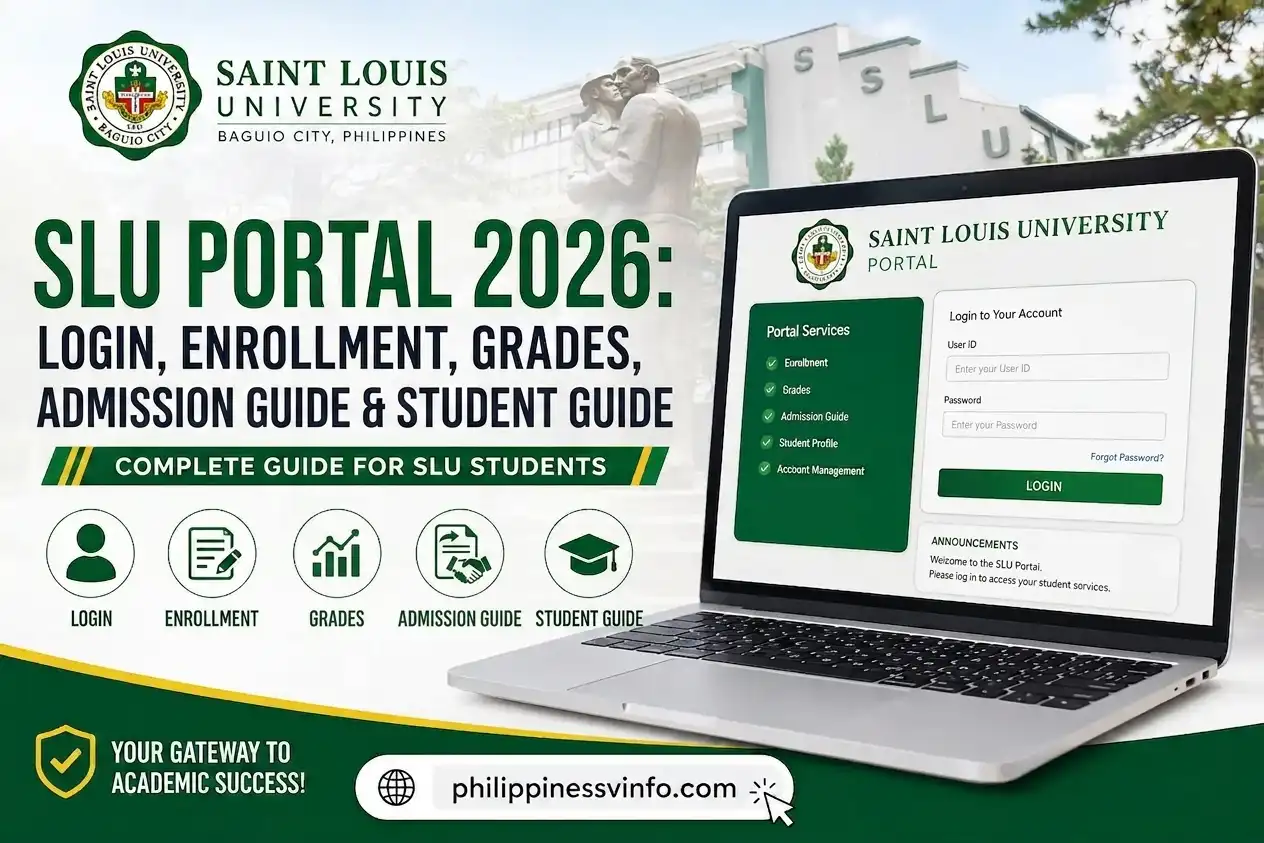
Managing university requirements is more convenient when students have a central online platform for accessing important services. For students of Saint Louis University (SLU) Philippines, the SLU Portal provides a digital way to access student information and university services through an individual account. The portal is particularly useful for students in Baguio City who need to manage academic and administrative activities online.
Depending on the services enabled for their account, students can use the SLU student portal to access student information, handle enrolment-related tasks, review academic records, and complete other university transactions. The features and menu options may vary based on the student’s programme and current university procedures, so students should always rely on the information and options available within their official account.
What Is the SLU Portal?
The SLU Portal serves as Saint Louis University’s central online gateway for student services, allowing learners to manage selected academic and administrative activities digitally. Rather than depending entirely on paper-based processes or visiting different university offices, students can use the portal to access services and information connected to their university accounts.
The SLU student portal is listed among Saint Louis University’s official Quick Links, and students who have not yet received a user ID and password are directed to register through the IT Center, formerly called the MIS Office. It is also important to understand that SLU operates different online systems for different purposes. For instance, the freshman application platform uses an Applicant Number and password, so prospective students should use the appropriate application system instead of assuming that all SLU accounts are managed through the same portal. Visit Homepage
SLU Portal Login
Accessing the SLU Portal is straightforward when you use the official university website and your authorised student credentials. Follow these six steps carefully, especially if you are logging in for the first time or accessing the portal during enrolment.
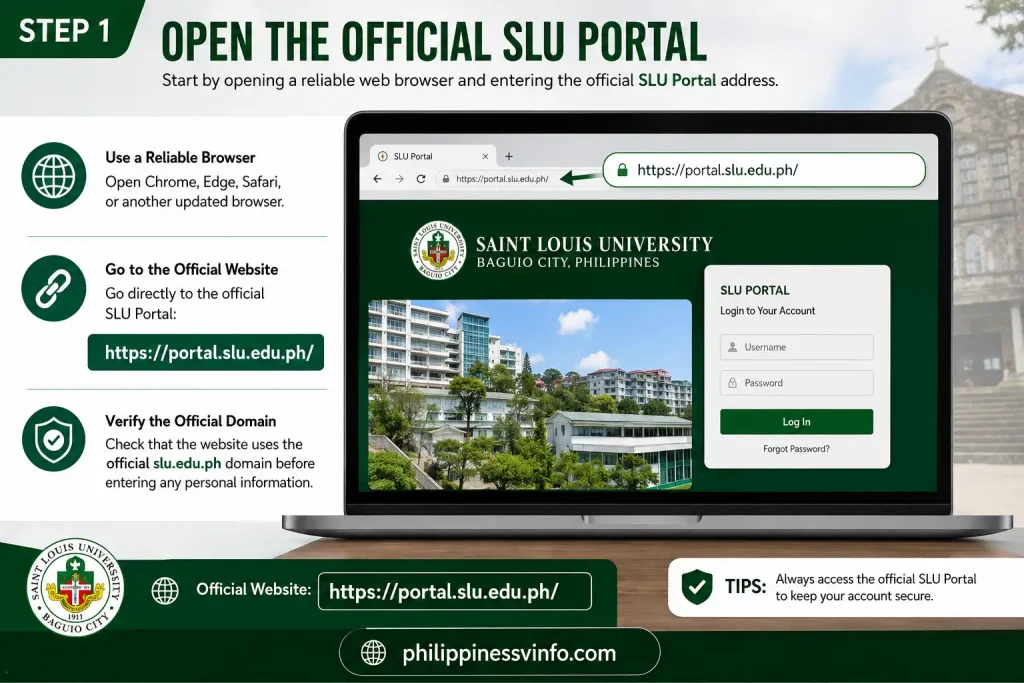
Step 1: Open the Official SLU Portal
Start by opening a reliable web browser and entering the official SLU student portal address directly. Using the official website helps protect your account from fake login pages and ensures that you are accessing the correct university system.
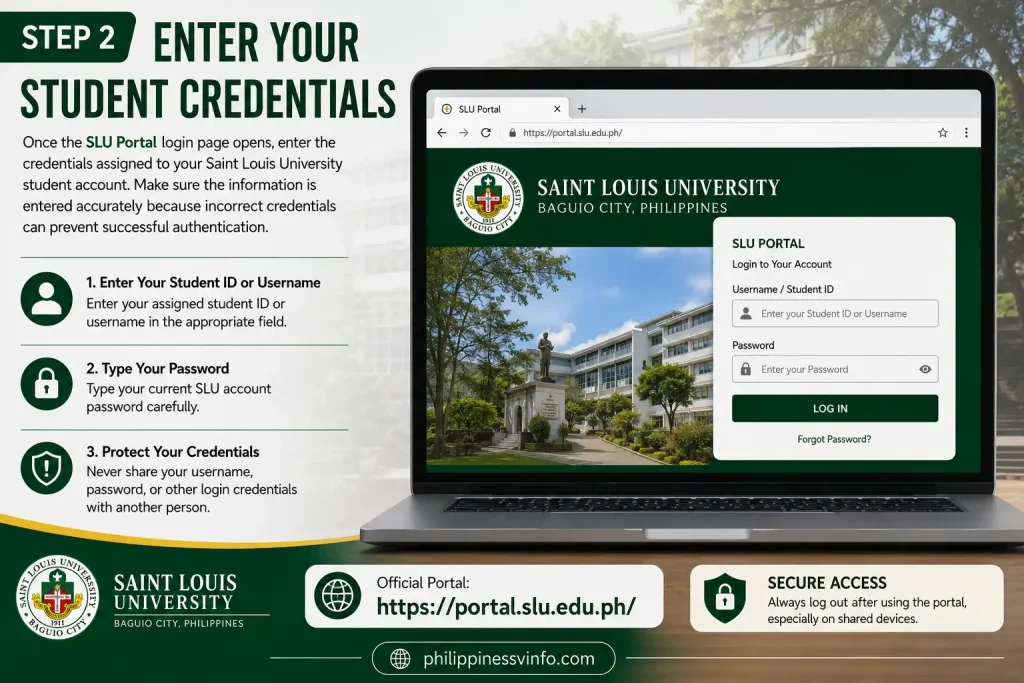
Step 2: Enter Your Student Credentials
Once the SLU student portal login page opens, enter the credentials assigned to your Saint Louis University student account. Make sure the information is entered accurately because incorrect credentials can prevent successful authentication.
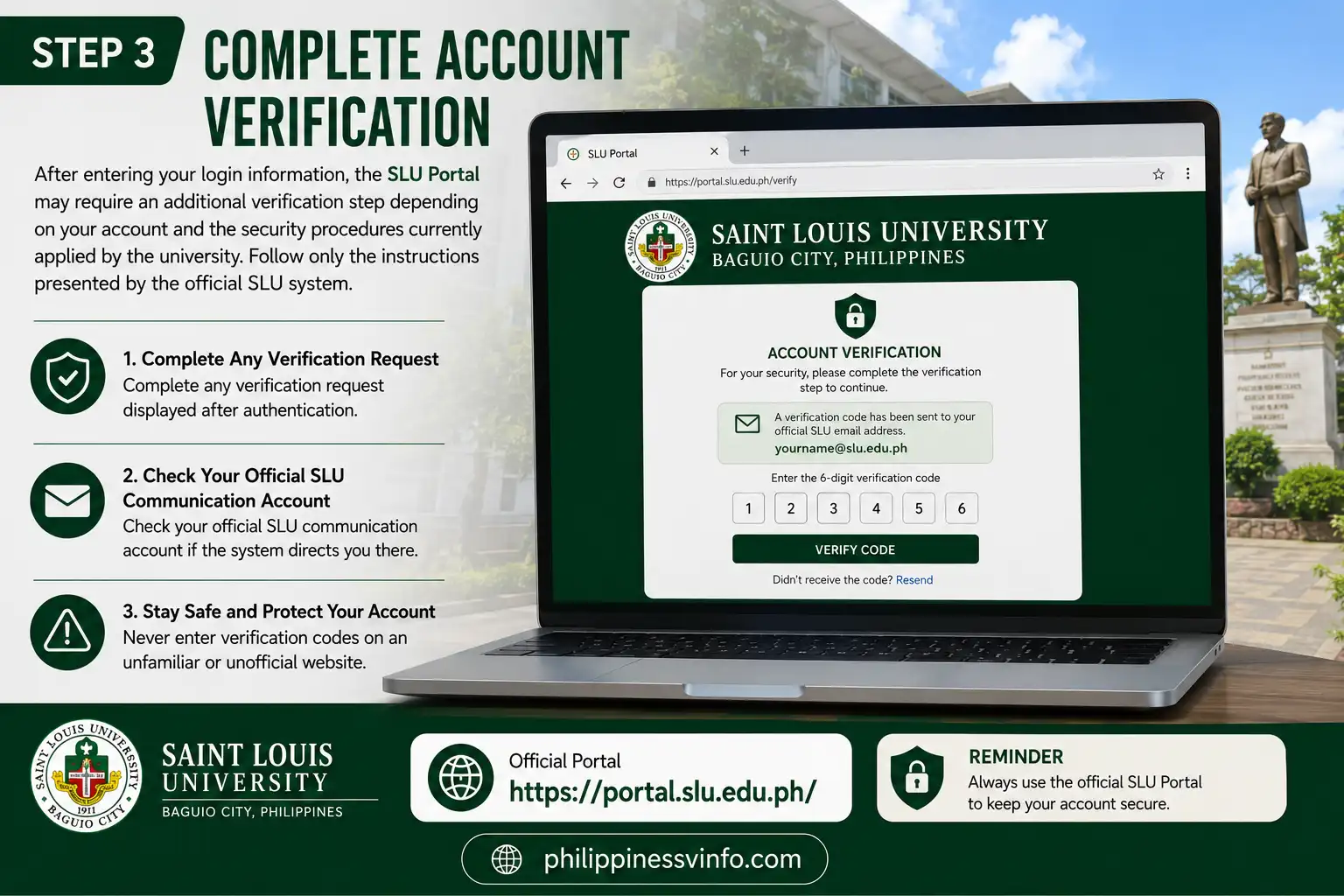
Step 3: Complete Account Verification
After entering your login information, the SLU student portal may require an additional verification step depending on your account and the security procedures currently applied by the university. Follow only the instructions presented by the official SLU system.
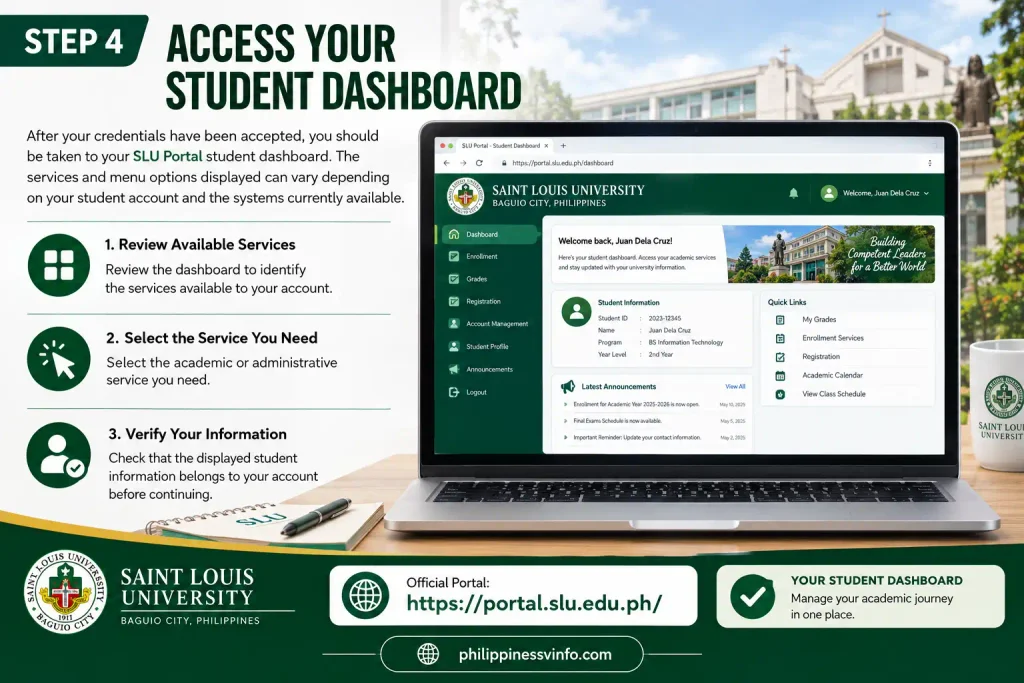
Step 4: Access Your Student Dashboard
After your credentials have been accepted, you should be taken to your SLU Portal student dashboard. The services and menu options displayed can vary depending on your student account and the systems currently available.
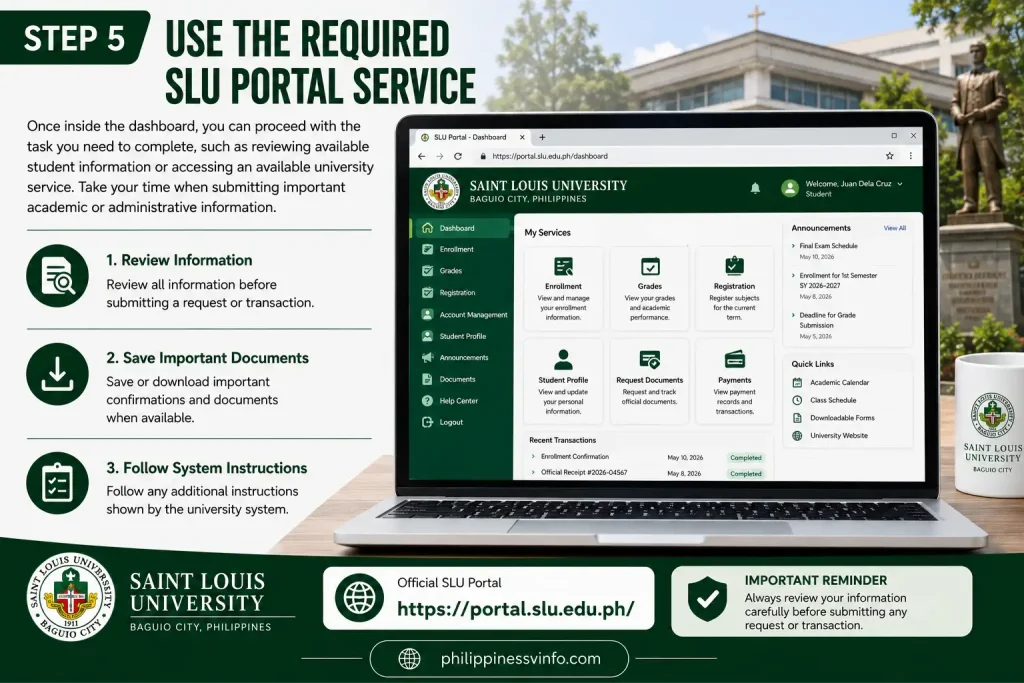
Step 5: Use the Required SLU Portal Service
Once inside the dashboard, you can proceed with the task you need to complete, such as reviewing available student information or accessing an available university service. Take your time when submitting important academic or administrative information.
Step 6: Log Out Securely
When you have finished using the SLU Portal, sign out of your account rather than simply closing the browser tab. This is especially important when accessing the portal from a shared, public, or campus computer.
Forgot Your SLU Portal Password?
If you cannot remember your password, use the official recovery option rather than repeatedly entering incorrect credentials. The current portal provides a “Forgot Password? – Account Request” option for account-related assistance.
SLU Portal Account Request for New Students
Before accessing the SLU student portal, new students should confirm that they have an active student account. An admission application does not necessarily mean that a regular student portal account has already been created, so these two services should be treated separately. The official student account-request page is intended specifically for students and collects the personal details needed to process an account request.
Students who have not received a user ID and password are directed to register through the IT Center, formerly known as the MIS Office. Parents and guardians follow a different registration process through the Registrar’s Office. For first-time users, understanding this difference can prevent confusion, particularly when someone tries to reset or recover an account that has not yet been activated.
SLU Portal Online Enrollment
The SLU Portal can play an important role in the online enrolment process at Saint Louis University. Students should follow the enrolment procedures provided by the university and make sure they are registering during the period applicable to their programme or student classification. Reviewing the relevant instructions before starting can help avoid delays or registration issues.
Before accessing the enrolment service, students should check their curriculum and current academic requirements, complete any required advising, and look for unresolved matters that could affect registration. Having these details in order makes it easier to proceed with course selection and other enrolment tasks through the SLU student portal.
SLU student portal Enrollment Process
Checking Grades Through the SLU Portal
Students can use the SLU student portal to review academic information and check grades once they have been released by the university. Follow these steps to find your available results and understand when you may need to contact the Registrar’s Office.
Step 1: Log in to Your SLU student portal Account
Sign in to the SLU Portal using your assigned student credentials and open the academic information available on your dashboard.
Step 2: Open Your Grade Information
Find the area where your academic results are displayed and review the grades recorded for your courses.
Step 3: Check the Grade Release Status
If a grade isn’t visible, it may simply not have been released yet. Grade availability depends on the university’s academic processes.
Step 4: Request Official Academic Records
Portal information should not automatically be treated as an official academic document. For transcripts and certificates, students should follow the procedures provided by the University Registrar’s Office.
SLU Academic Records and Student Documents
Academic records are an important part of the services surrounding the SLU Portal. Students may need their records for graduation, employment, further study, scholarship applications or other official purposes.
Saint Louis University’s Registrar’s Office lists the Transcript of Records (TOR) as an official record containing courses taken and grades earned, including applicable transferred credits. It also lists certificates such as Certificate of Enrolment, Certificate of Grades, Certificate of General Weighted Average and Certificate of Graduation.
Financial Information and Tuition Payments
The SLU student portal can also help students manage information related to university charges and account status. Before making a payment or confirming enrolment, review the amount shown in your account carefully and make sure you understand which charges apply to your programme and term.
Your financial information may include tuition and other university charges. If your account shows an outstanding amount or another restriction, follow the university’s instructions for resolving it before attempting a transaction that requires financial clearance.
Because payment channels and processing times can change, students should verify the latest payment instructions through official Saint Louis University sources rather than relying on old screenshots or third-party posts.
SLU Payment Methods
The payment information supplied for this guide includes several possible channels:
| Payment Method | Channel | Typical Verification Time |
|---|---|---|
| SLU Finance Counter | Main Campus Cashier using cash or cheque | Instant |
| Bank Over-the-Counter | Partner banks such as BDO, Metrobank and UnionBank | 1–2 working days |
| Online Payment Gateway | Portal-based payment using available digital methods | Real-time to 24 hours |
The actual payment options available to you should always be confirmed through the university’s current instructions. Do not assume that every payment method is available for every student or transaction.
SLU Portal Profile and Contact Information
Keeping your personal information current is another important part of managing your SLU student portal account. Students should check their contact details and make sure the university has accurate information for communication.
Where the relevant profile-management options are available, review details such as your telephone number, home address and emergency contact information.
An outdated phone number or address can make university communication more difficult, particularly when important notices or administrative information need to reach you.
Information Students Should Review
Your profile should be checked periodically for:
Only change information that you can verify as correct. If a particular field cannot be edited through the SLU student portal, contact the appropriate SLU office rather than attempting to bypass the system.
SLU Admission Guide 2026
Saint Louis University (SLU) admission is the process through which prospective students apply for undergraduate and other academic programs at the university. Applicants should first review the admission requirements for their chosen program and prepare the necessary documents, such as academic records, identification documents, and other requirements specified by SLU. Admission requirements may differ depending on whether the applicant is a freshman, transferee, graduate student, or belongs to another applicant category.
To begin the SLU admission process, applicants should check the official SLU admission announcements and follow the university’s application instructions. Complete the required application information carefully, submit the necessary documents, and monitor any updates regarding application status, entrance requirements, interviews, or enrollment instructions. Once accepted, students can follow SLU’s instructions for enrollment and prepare for the next academic term.
Common SLU Portal Login Problems
Login issues with the SLU student portal can happen for several reasons, but a failed sign-in doesn’t always mean that your account or the portal itself is unavailable. Start with basic checks before seeking technical assistance.
Incorrect Username or Password
If your credentials aren’t accepted, carefully check the information you entered and try again.
Account Not Yet Activated
New students may not be able to sign in if their SLU Portal account hasn’t been created or activated yet.
Portal Page Not Loading
A loading problem may be related to your browser or internet connection rather than your student account.
What to Do If Your SLU Portal Account Is Locked
Your SLU Portal account may contain important personal, academic, and student information, so keeping your login details secure is essential. Always access the portal through the official SLU website or a trusted portal address, and check the domain carefully before entering your username, password, or verification details. Avoid clicking unfamiliar login links that could lead to fake websites designed to collect your information.
When using the SLU student portal on a shared or public computer, never save your password and always log out completely after finishing your session. Create a strong, unique password that is difficult to guess and avoid using the same password on multiple accounts. If SLU asks students to update their passwords or follow additional security requirements, make sure you follow the university’s official instructions.
Important Security Practices
SLU Portal vs Other SLU Online Services
One point that often causes confusion is that Saint Louis University has multiple online services. The SLU Portal is not necessarily the correct destination for every university transaction.
For example, freshmen have a separate online application system, while Registrar services cover official academic documents and records. The university’s official website provides links to several services so students can select the appropriate system. (slu.edu.ph)
| Service | Where to Look |
|---|---|
| Student account access | SLU Portal |
| Freshman application | Official SLU Freshman Application Portal |
| Academic records and official documents | University Registrar’s Office |
| ICT-related assistance | SLU ICT/Internet Services |
| General university information | Official SLU website |
This separation makes it easier to identify where to go when a particular function isn’t visible in your SLU student portal account.
Tips for Using the SLU Portal During Enrollment
Frequently Asked Questions About the SLU Student Portal
Conclusion
The SLU Portal makes it easier for Saint Louis University students to manage important academic and administrative tasks online. From accessing student information and checking grades to handling enrolment activities and reviewing available university services, the portal provides a convenient central platform for eligible students.
To get the most from the SLU Portal, students should keep their account credentials secure, resolve login or activation issues early, carefully review enrolment and academic information, and save important confirmations and documents. Because SLU uses separate systems for some services, such as freshman applications and official Registrar transactions, students should always use the correct official platform for their specific needs. Checking current instructions from Saint Louis University is also recommended because portal features, procedures, and payment options can change over time.